
Your booking page has its own web address. You can share that address anywhere, or put booking right on your own website so customers never have to leave it. There are three ways, from easiest to most involved.
Open More > Setup > Online bookings and scroll to Share. Each option has its own tab, marked Easy or Medium.
Before you share your booking page, make sure online bookings are turned on and your services, staff hours and location hours are correct. See Setting Up Your Booking Page.
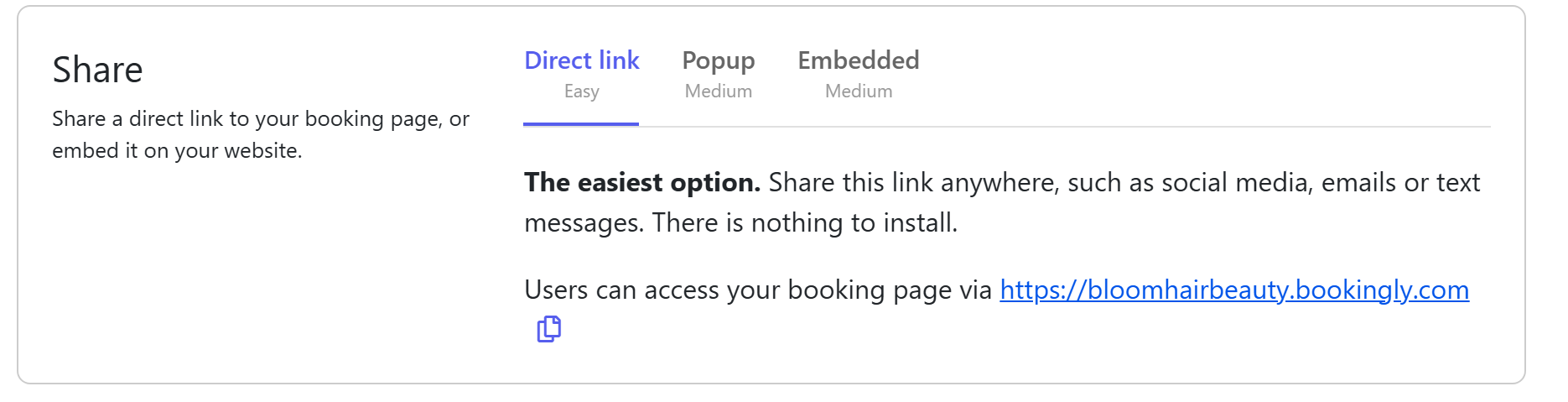
Option 1: Direct link (easiest)
Copy your booking link from the Direct link tab and share it anywhere: social media, emails, text messages, your Google business profile or a link in your website's menu. Nothing needs installing. The link is your business's own address, such as yourbusiness.bookingly.com.
You choose the first part of the address under Basic information (the Subdomain). If you change it, the new address only works after you save, and links you have already shared with the old address will stop working.
Option 2: Popup button
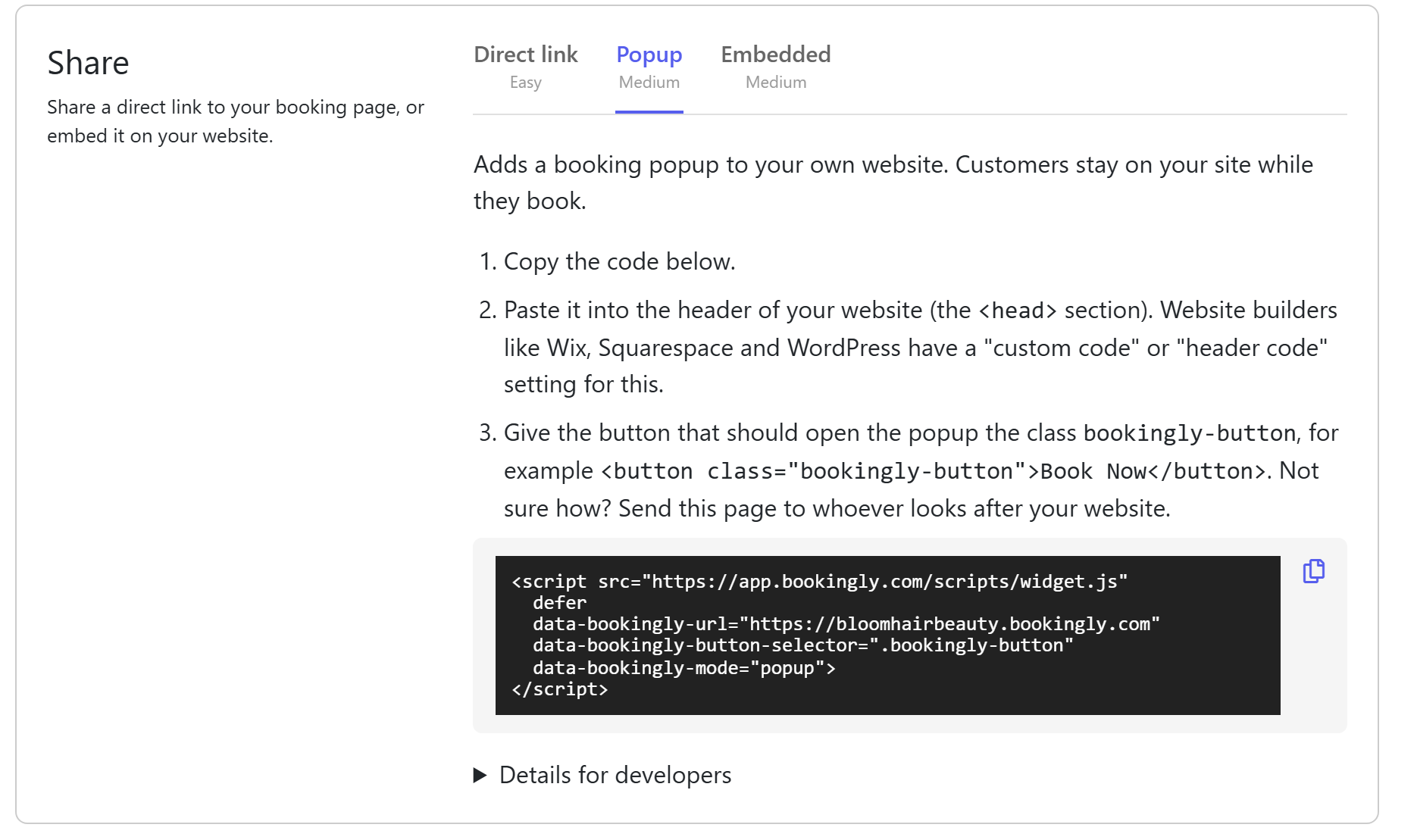
A Book Now button on your website that opens your booking page in a popup. Customers stay on your site while they book.
- Open the Popup tab and select Copy code.
- Paste the code into the header of your website (the
<head>section). Website builders such as Wix, Squarespace and WordPress have a "custom code" or "header code" setting for this. - Give the button that should open the popup the class
bookingly-button, for example:
<button class="bookingly-button">Book Now</button>Not sure how? Send the page to whoever looks after your website. Developers can change which buttons open the popup with the data-bookingly-button-selector setting, which accepts a class, an ID or a comma-separated list.
Option 3: Embedded on a page
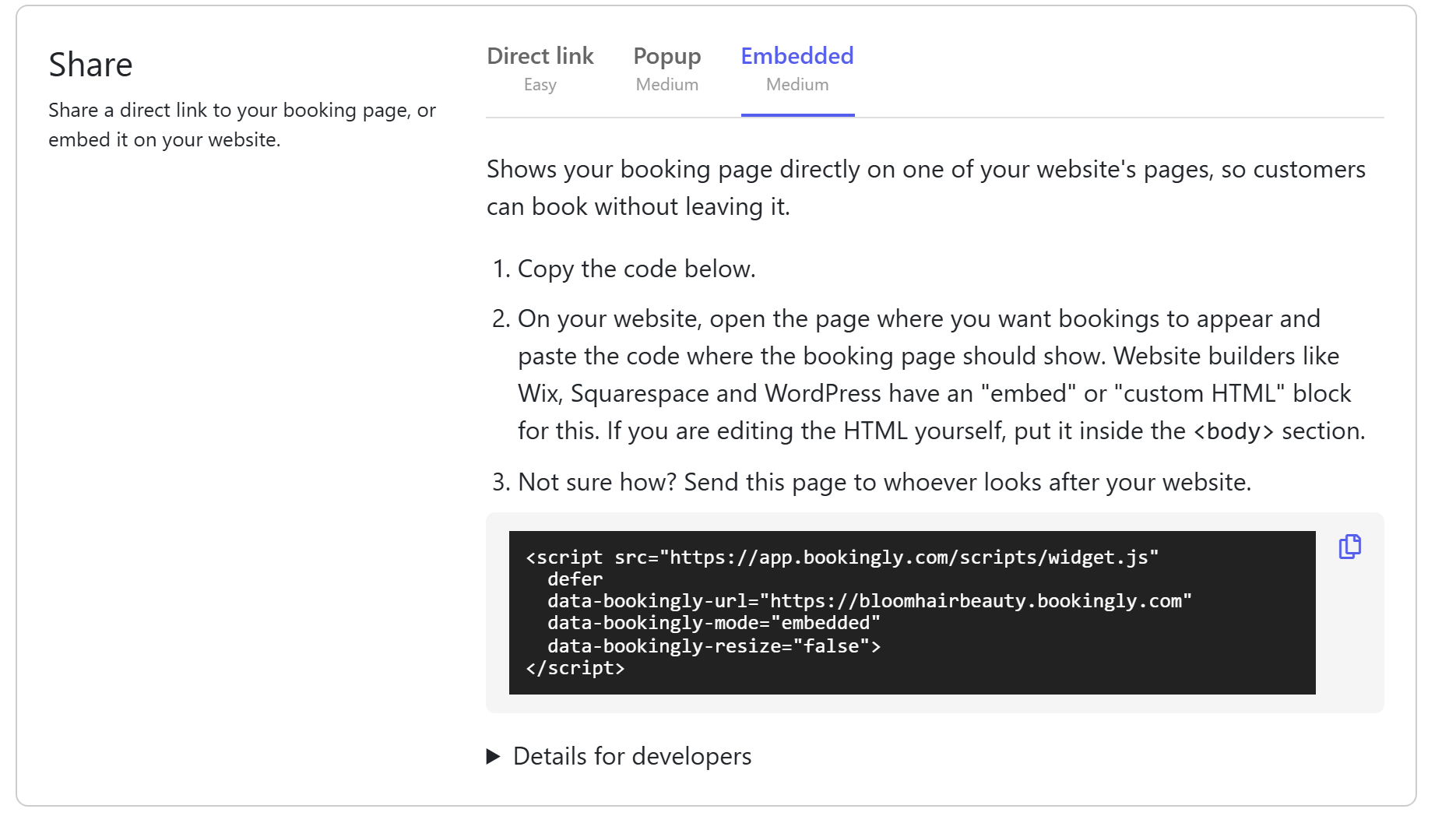
Shows your booking page directly inside one of your website's pages.
- Open the Embedded tab and select Copy code.
- On your website, open the page where you want bookings to appear and paste the code where the booking page should show. Website builders have an "embed" or "custom HTML" block for this. If you edit the HTML yourself, put the code inside the
<body>section.
The data-bookingly-resize setting controls the height:
falsegives the booking page a fixed height with its own scrollbar.truemakes it grow to fit its content and scroll with your page, with no inner scrollbars.
Which should I use?
If you want to... | Use |
|---|---|
Share on social media, email or text messages | Direct link |
Add a Book Now button to an existing website | Popup |
Show booking as part of a page on your site | Embedded |
Good to know
- The popup and embedded options only work on the website where you paste the code, and the booking page inside looks the same as your own booking page, including your colours, logo and layout.
- Any change you make to your services or booking page settings shows up everywhere straight away. There is nothing to update on your website.
- Customers who book through the popup or embedded page appear in your calendar like any other online booking.