
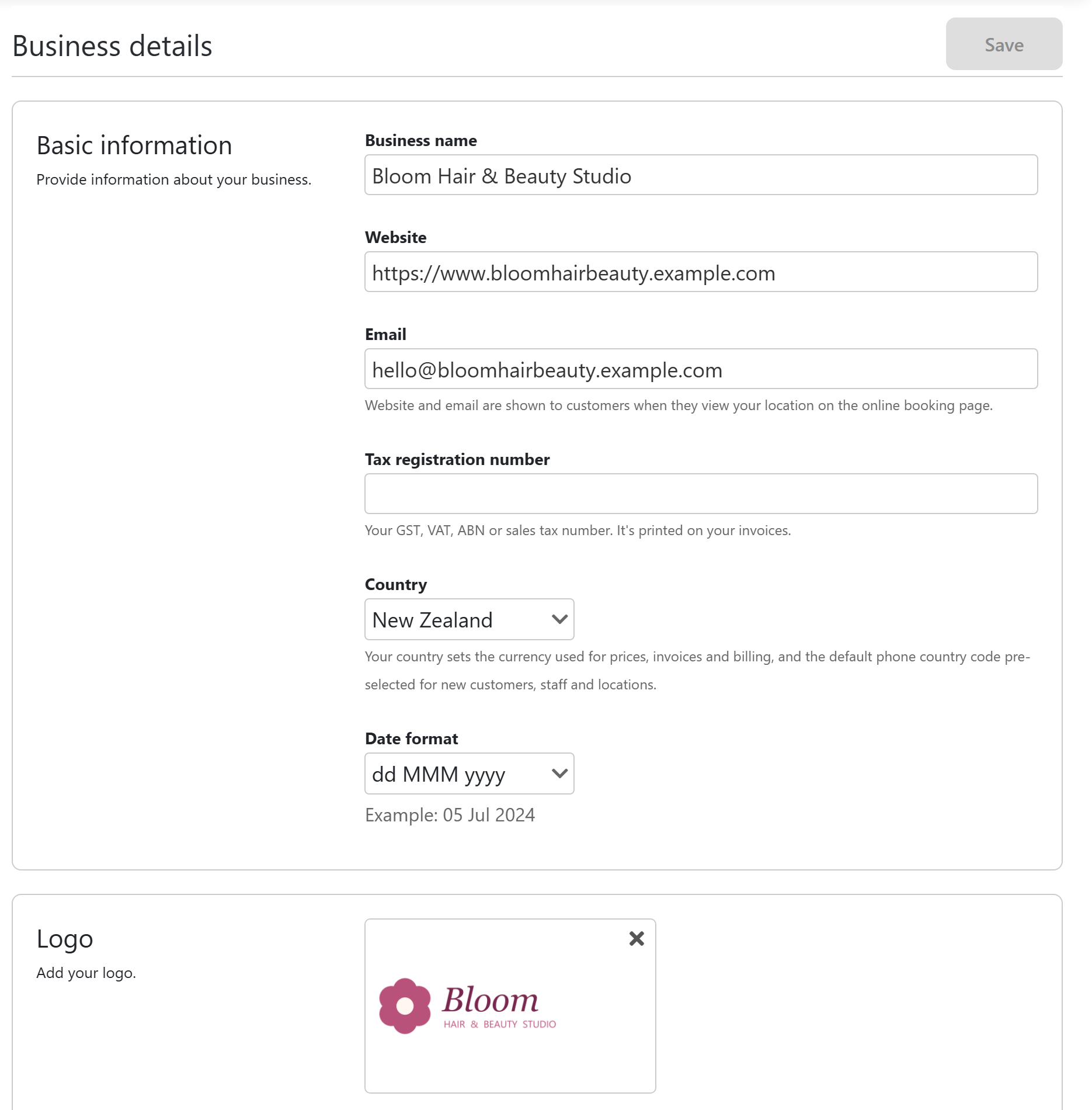
Business details holds the basics about your business. What you enter here appears on your booking page, invoices and customer messages.
Open More > Setup > Business details. You need permission to manage business details to change anything. Changes to the form are kept when you select Save. Logo and icon uploads are saved straight away.
Basic information
Field | Notes |
|---|---|
Business name | Shown to customers on your booking page and in messages. |
Website and Email | Shown to customers when they view your location on the online booking page. |
Tax registration number | Your GST, VAT, ABN or sales tax number, up to 50 characters. It's printed under your address on invoice PDFs that have tax on them. Leave it empty if you're not registered. See Set Up Taxes and Payment Methods. |
Country | Sets the currency used for prices, invoices and billing, and the default phone country code pre-selected for new customers, staff and locations. |
Date format | The format used to show dates. |
Your timezone is set per location, not here. See Setting Up Locations.
Logo
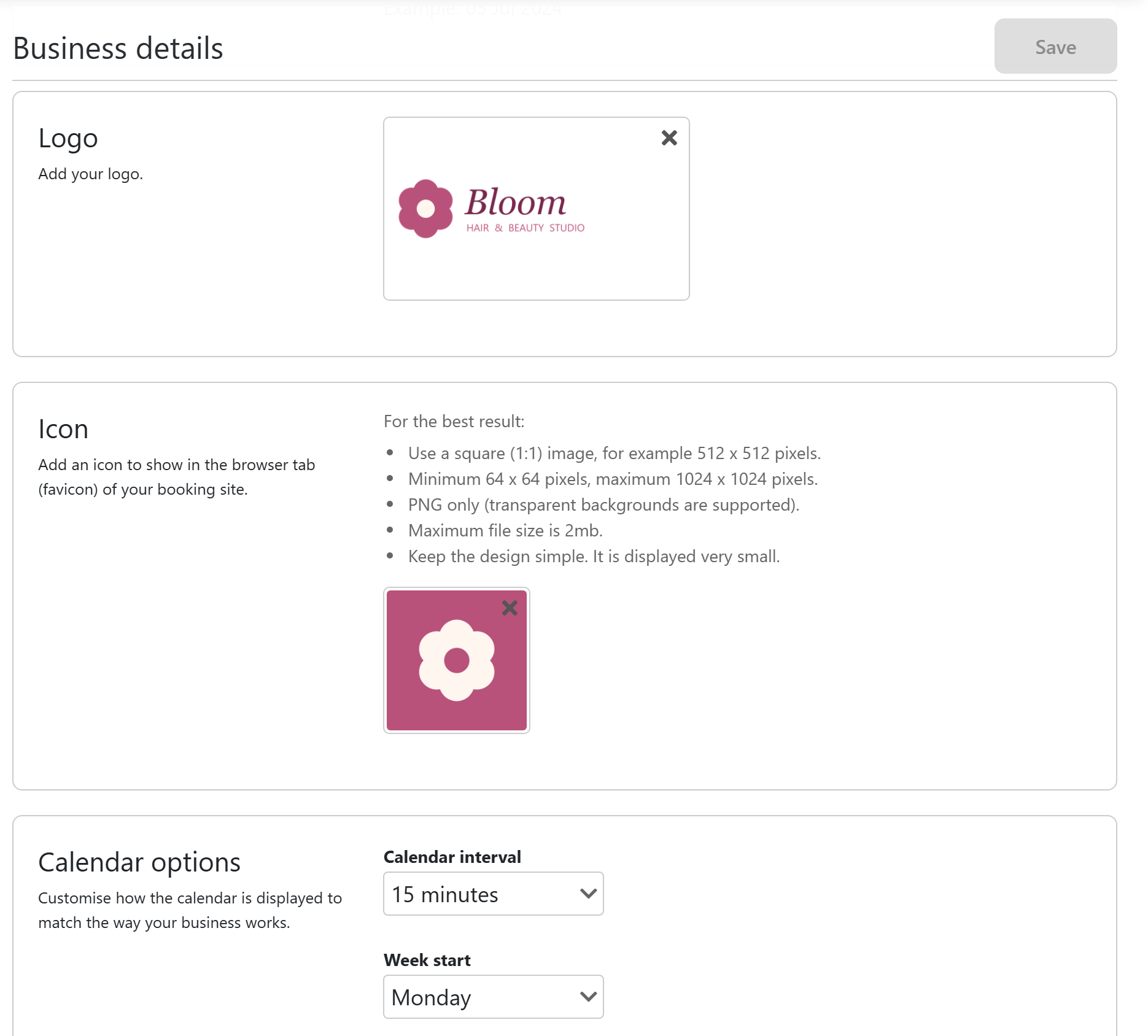
Select to upload a logo (.jpg, .jpeg or .png). It's saved immediately, and you can delete it any time. If no logo is added, your booking page shows your business name as a heading instead.
How your logo is displayed on the booking page, including its height, is set under Look and feel in More > Setup > Online bookings. See Setting Up Your Booking Page.
Icon (browser tab)
The icon is the small image shown in the browser tab when customers visit your booking page, and when they save it to their phone's home screen.
Upload a PNG that is:
- Square (1:1).
- At least 192 x 192 and no larger than 1024 x 1024 pixels.
- No larger than 2 MB.
Keep the design simple, because it's displayed very small. If the image doesn't meet the rules you'll see a message explaining which one, and nothing is uploaded. Select the delete button to remove the icon.
Calendar options
- Calendar interval: how the calendar is divided into rows of time.
- Week start: the first day of the week in the calendar.
Products
The Sell products option adds a Products page and lets you add products to a sale at checkout. Turn it off if you only sell services. It doesn't delete products or change past sales. See Add and Manage Products.
Business type
Business details also has a Business type section for owners. See Switch Between Services and Sports & Facilities.