
As well as booking services, you can sell products such as retail items or add-ons, and sell them at checkout. Bookingly can keep track of how many you have in stock at each location.
Adding and editing products depends on your permission role. If you can't see the Products page or the buttons on it, ask the account owner. See Create and Edit Permission Roles.
Turn product sales on or off
Open More > Setup > Business details and find Products. The Sell products option adds a Products page under Setup and lets you add products to a sale at checkout.
Turning it off hides the Products page and the Products tab at checkout. It doesn't delete your products or change past sales. Turn it back on at any time.
Add a product
- Open More > Setup > Products.
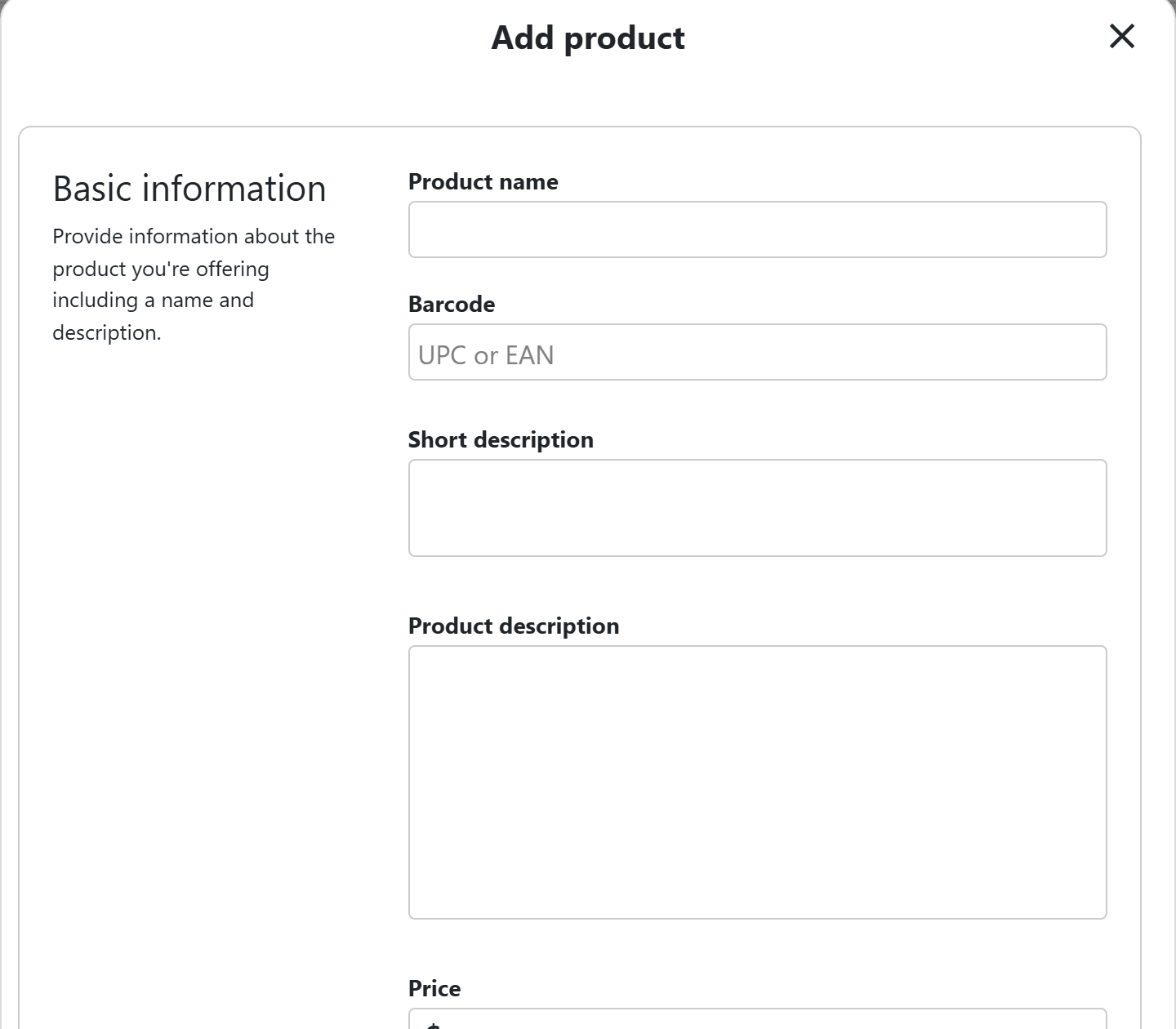
- Select Add product.
- Fill in the details, then select Save.
Field | What to enter |
|---|---|
Product name | Required. The name staff will search for and customers will see on invoices. |
Short description and Product description | Optional text about the product. |
SKU and Barcode | Optional codes. The barcode accepts a UPC or EAN. Both can be searched at checkout. |
Price | Required. |
Tax rate | Choose a rate if tax applies. Rates are set up under More > Setup > Taxes. |
Category, Brand and Supplier | Optional. Pick from the lists you've created, see below. |
Images | Add pictures of the product. Drag them to change the order. |
Track stock
Turn on Track stock to count how many of the product you have. Enter a Quantity for each location (if you only have one location, there's a single Quantity box).
Every time the product is sold at checkout, the quantity at the location where the sale was made goes down by the number sold. Update the quantity on the product when you receive new stock.
If you leave Track stock off, Bookingly doesn't count the product and you can sell it without limit.
Categories, brands and suppliers
Use these to keep a long product list organised. On the Products page, switch between Products, Categories, Brands and Suppliers, then select Add category, Add brand or Add supplier. Each one only needs a name, and you can then choose it when you add or edit a product.
Deleting a category, brand or supplier asks you to confirm first.
Find a product
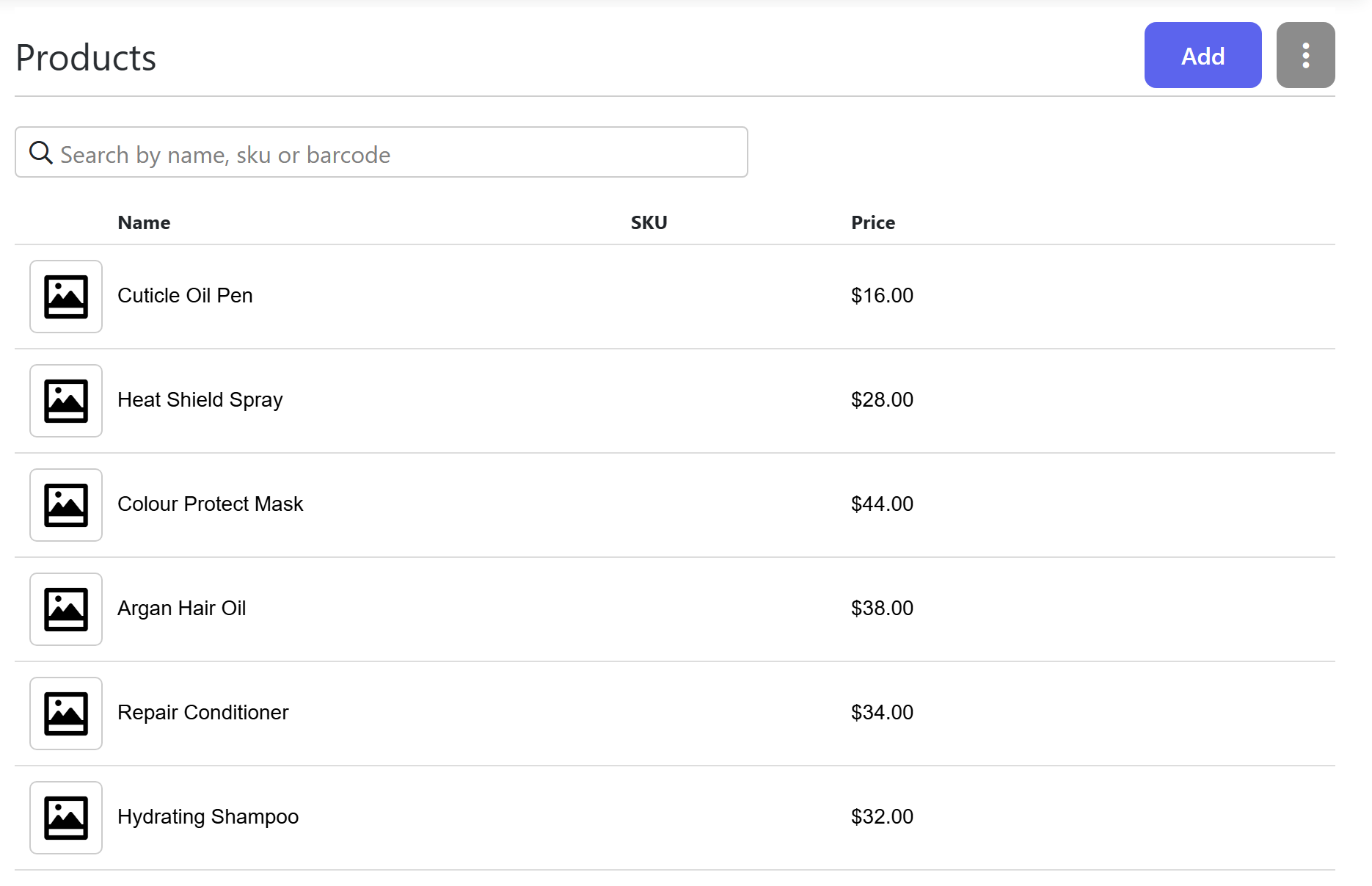
On the Products page, search by name, SKU or barcode.
Sell products on your booking site
Turn on Sell on your booking page in a product to offer it in your online shop, where customers pay online and collect it from you. You also need to switch products on under More > Setup > Online shop. See Set Up Your Online Shop.
Selling your products
Products are sold from the checkout screen. See Make a Sale and Manage Invoices.