
Every sale in Bookingly produces an invoice. You can check a customer out at the end of an appointment, or create a sale from scratch for someone who just wants to buy.
Check out from a booking
- Open the booking in your calendar.
- Select Checkout.
- The booking's services are already in the cart. Add more items if the customer wants them (see below).
- Choose how they're paying and select Confirm payment.
If your business has Sell products turned off and the booking only has free services, the button says Complete instead and no sale is created. See Add and Manage Products.
Create a sale without a booking
- Open Sales from the main menu.
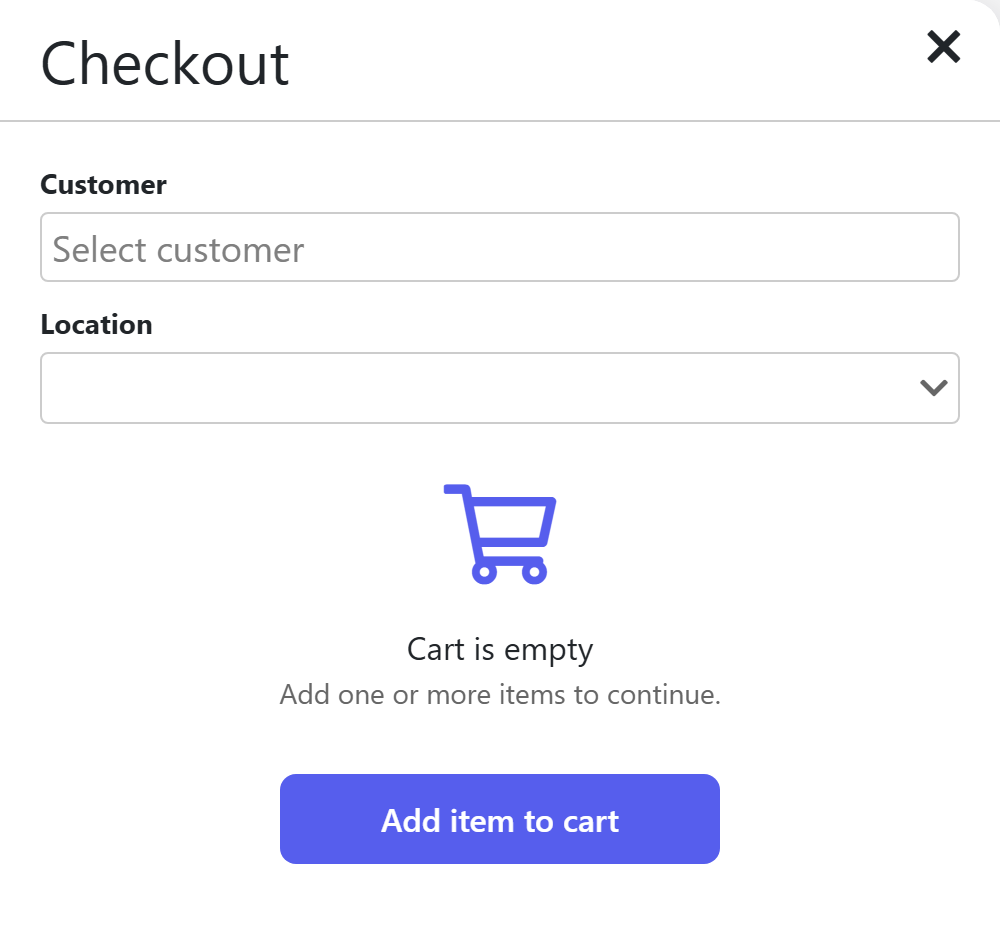
- Select Create sale.
- Choose the Customer and the Location.
- Select Add item to cart.
Add items
In the add item window, switch between Services and Products, and search by name. Products can also be found by SKU or barcode. Select an item to add it to the cart.
If you have turned on gift cards or created packages, you also see a Gift card tab and a Packages tab. See Sell Gift Cards and Accept Them as Payment and Sell Packages and Use Them at Checkout.
Edit or remove an item
Select an item in the cart and choose Edit or Delete. When you edit, you can change the Quantity and the Price of that line, for example to give a one-off adjustment.
Discount codes
Enter a code under Discount code and select Apply. The discount shows in the totals. Select Remove to take it off.
If the customer booked online with a code, it's already applied and marked "Used when the customer booked online". See Marketing Overview for how deals and codes work.
Check the tax
When any item in the sale has a tax rate, the total at the bottom of the checkout shows an Includes tax line with the amount of tax in the total. It updates as you change items, quantities, prices or a discount code. Nothing is shown for sales without tax. See Set Up Taxes and Payment Methods.
Take payment
Select Continue to reach Payment method, pick one, then Confirm payment. The methods you can choose are the ones set up under More > Setup > Payment methods, for example cash, card on a separate terminal and any online method such as Stripe.
If the customer already paid a deposit or the full amount online, the checkout shows how much was paid and with which method. Only the amount still owing needs to be collected. The same goes for any part of the booking they paid for with a gift card when they booked online.
To take a gift card, enter its code under Gift card on the payment step. To use one of the customer's packages, select Use on the service in the cart.
When payment is confirmed you see Sale completed. From there you can View sale or, for a sale from a booking, Rebook the customer.
Find a sale
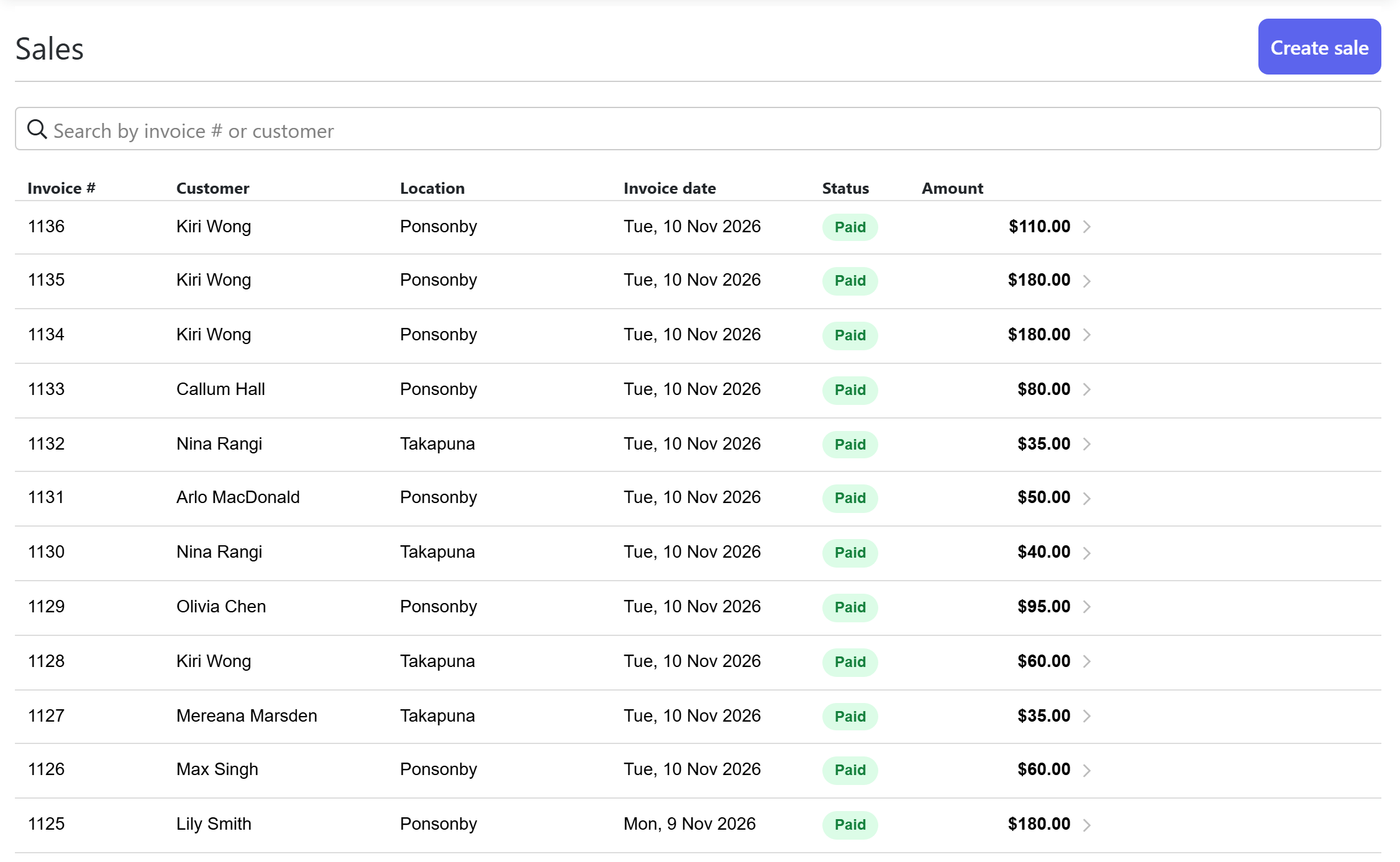
The Sales page lists every invoice with its number, customer, location, date, status and amount. Search by invoice number or customer name.
Status | Meaning |
|---|---|
Paid | Fully paid. |
Partially paid | Some payment has been taken, and some is owing. |
Unpaid | Nothing has been paid yet. |
Refunded | The payment was refunded. See Cancel a Booking and Refund the Customer. |
Void or Cancelled | The invoice was cancelled. |
Work with an invoice
Select a sale to open its invoice. It lists each item with its unit price, quantity, tax and amount, the total, and a payments table showing each payment's date, type and amount. Tax is shown separately when any item has tax. If you've added a tax registration number under Business details, it's printed under your address on the PDF. To total up the tax from your invoices, see Run a Tax Report.
Use the options menu on the invoice to:
- Download PDF
- Print (on a computer)
- Email the invoice to the customer. Check or change the email address, then select Send.
- View booking, if the sale came from a booking
- Rebook the customer
Good to know
- Selling a product reduces its stock at the sale's location, if you track stock for it.
- Sports and facilities businesses only have the Sales page once a payment integration such as Stripe is connected, and don't have the Create sale button. Their sales come from court bookings.
- What you can see and do depends on your permission role.