
A gift card is a code worth a set amount of money. A customer can spend it a bit at a time, and whatever is left stays on the card. You can sell gift cards at checkout and accept them as payment without connecting any online payment service.
To let customers buy and spend gift cards on your booking site, see Sell and Accept Gift Cards Online.
Turn gift cards on
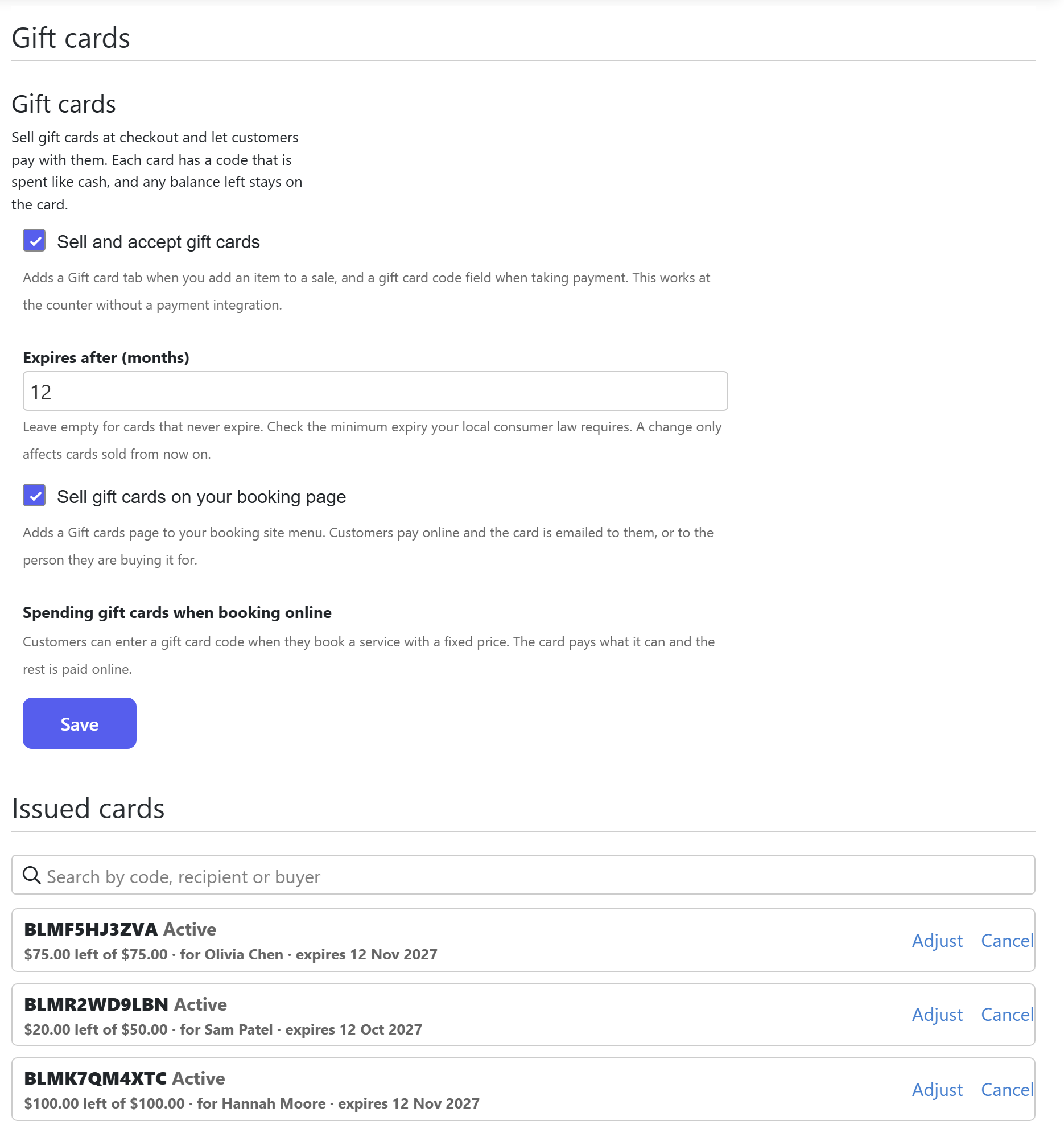
- Go to More > Setup > Gift cards.
- Tick Sell and accept gift cards.
- Optionally, enter Expires after (months). Leave it empty for cards that never expire.
- Select Save.
Changing the expiry only affects cards you sell from then on. Check the minimum expiry that your local consumer law requires before you set one.
You need the Manage business details permission to change these settings.
Sell a gift card
- Start a sale, or open a customer's checkout.
- Select Add item to cart and open the Gift card tab.
- Enter the Amount, between 1 and 10,000. You can also add the Recipient name if you want it noted on the sale.
- Select Add to cart, then take payment as usual.
When the sale is complete, the Sale completed screen shows the gift card's code. Give it to the customer, or read it out to them. Codes look like ABCD-EFGH-JK23. They avoid letters and numbers that are easy to mix up, such as 0 and O, and it doesn't matter whether the customer types capitals, dashes or spaces.
To sell several cards of the same value at once, change the Quantity of the gift card in the cart (up to 20). Each one gets its own code.
Some things to know:
- Discount codes don't take anything off a gift card.
- You can't pay for a gift card with another gift card.
- The gift card appears on the invoice as an item, so the money is part of that day's sales.
Take a gift card as payment
- In the checkout, select Continue to reach the payment step.
- Under Gift card, enter the code and select Apply.
- The card's balance and the amount it will pay are shown.
- If the card doesn't cover everything, choose how the rest is paid, then select Confirm payment.
If the card covers the whole amount, you don't need to choose a payment method. Any balance left stays on the card for next time. Select Remove to take the card off before you confirm.
On the invoice the card shows as a Gift card payment.
If the customer already paid part of a booking online or with a gift card when they booked, that is taken off first. See Sell and Accept Gift Cards Online.
If the code is not accepted, the message tells you why. It may have been cancelled, expired, spent already, or typed wrongly.
See your gift cards
The list under More > Setup > Gift cards shows every card, newest first, with its code, how much is left of the original amount, who it is for and who bought it, and when it expires. Search by code, recipient or buyer.
Status | Meaning |
|---|---|
Active | Has a balance and can be spent. |
Used | The whole amount has been spent. |
Expired | Passed its expiry date. |
Cancelled | You cancelled it. |
Adjust a card's balance or see its history
Select Adjust next to a card to see everything that has happened to it: when it was issued, each time it was spent, and any money returned or adjusted by hand. If the card is cancelled, the link says History instead and the balance can't be changed.
To change the balance, choose Add to the balance or Take off the balance, enter the Amount, and write a short note saying why, for example "Court 2 cancelled, refund not given at the time". Select Update balance. The note is kept in the card's history.
Use this to put right a mistake, such as a cancelled booking whose money wasn't returned to the card, or to give a customer credit as a goodwill gesture. You can't take off more than the card has available, and money set aside for upcoming bookings can't be taken. You need the Manage business details permission.
Cancel a gift card
Select Cancel next to a card, then confirm. Its remaining balance can no longer be spent. This can't be undone, and Bookingly doesn't refund anyone for you.
You can't cancel a card that a customer has used to pay for a booking that hasn't been checked out yet. Cancel those bookings first, or wait until they have been checked out.
Turn gift cards off
Untick Sell and accept gift cards and save. Cards you have already issued are kept, but they can't be sold or accepted until you turn gift cards back on.
Good to know
- Cards are tied to your business. A customer can only spend a card with the business that sold it.
- If you've connected an online payment service such as Stripe, customers can also buy and spend cards on your booking site. See Sell and Accept Gift Cards Online.
- Sports and facilities businesses don't have a checkout, so their gift cards are sold and spent online. See Gift Cards for Court Bookings.