
Sports and facilities businesses don't have a counter checkout, so gift cards for courts are sold and spent online. A customer buys a card on your booking site, and then enters its code when they book a court.
What you need first
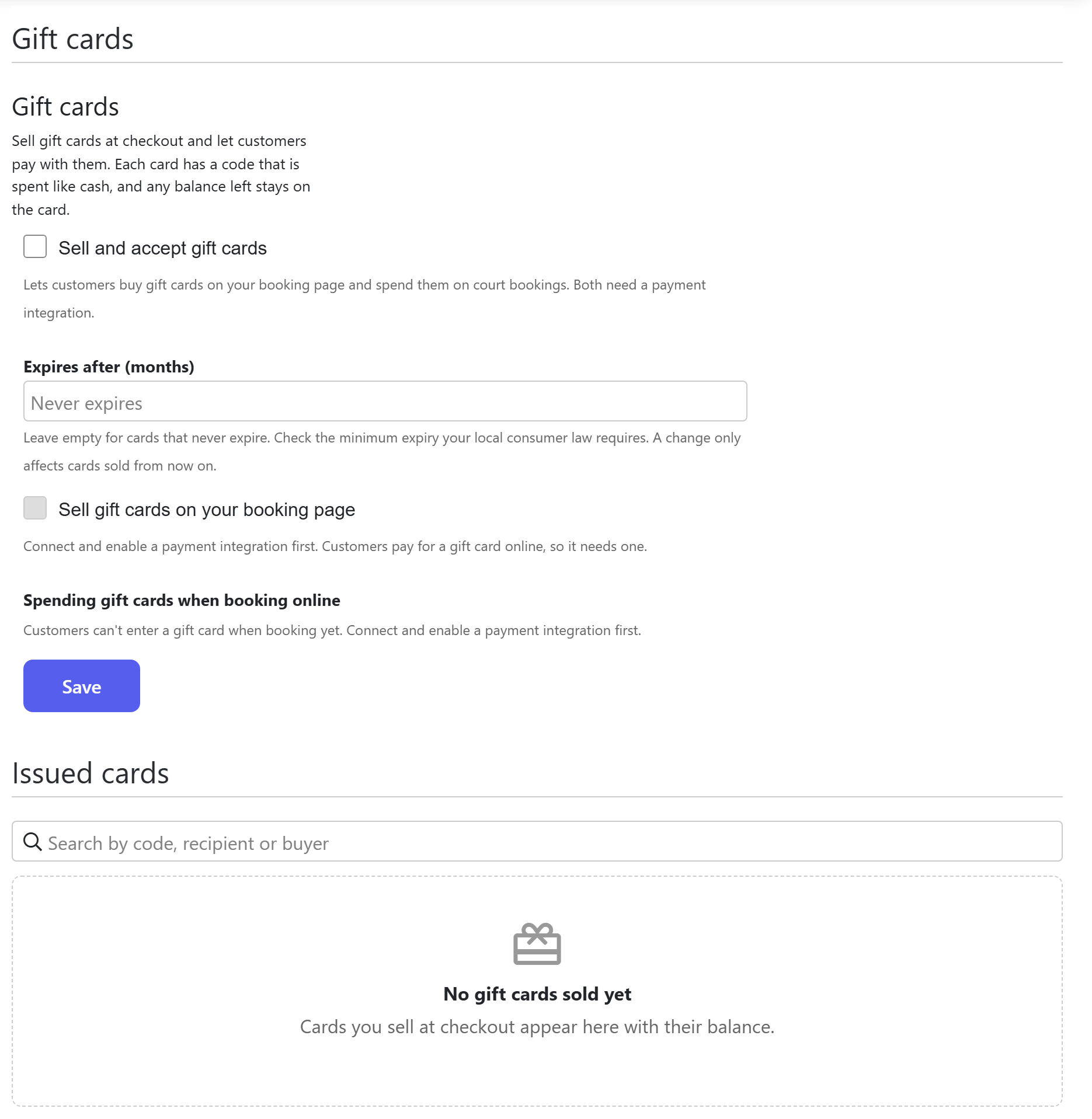
- Go to More > Setup > Gift cards and tick Sell and accept gift cards.
- Connect a payment integration such as Stripe. See Take Online Payments with Stripe.
- For customers to spend a card on a court booking, set the payment integration to Require payment when booking. Court bookings are always paid in full.
- To let customers buy cards, tick Sell gift cards on your booking page and select Save.
The Gift cards page tells you what is missing. For how the buying side works for customers, see Sell and Accept Gift Cards Online.
What customers see
- A Gift cards page in the menu of your booking site, where they buy a card and pay securely online. The code is shown on the page and emailed.
- A Gift card box on the last booking step, under the discount code box. They enter the code and select Apply. The page shows how much the card pays.
- If the card pays for the whole booking, the courts are confirmed straight away. Otherwise the rest is paid online.
Customers can book several courts and times in one go. The gift card pays across all of them.
How the card is used
While the customer finishes booking, the amount is set aside on the card so nobody else can spend it. If they don't complete the booking, it goes back on the card.
Once the booking is confirmed, the amount is taken off the card's balance, and the sale shows on your Sales page with the gift card as a payment alongside any card payment.
When a court is cancelled
If you or the customer cancel a court that was paid for with a gift card, the money for that court goes back on the card, ready to be used again. For a booking of several courts, each court gets its share back, worked out from the court's price. When the last court is cancelled, whatever is left comes back.
- When you cancel a booking in the timetable, the cancel window shows what was paid. If the customer paid partly by card and partly with a gift card, there is a separate box for each, for example "Refund $20.00 to the customer's card" and "Return $10.00 to the customer's gift card". You can tick one, both or neither.
- When a customer cancels from their booking link, they see how much returns to the card and how much to their bank card.
- Any box you leave unticked keeps that money. If that was a mistake, you can add the money back yourself. See Sell Gift Cards and Accept Them as Payment.
The returned money appears on your Sales page as a refund, and in the list under More > Setup > Gift cards the card's balance goes back up.
Good to know
- You can't cancel a gift card while court bookings that were paid with it are still waiting for payment.
- Gift cards can be used with discount codes. The discount comes off first.
- To check a card's balance, or to look one up for a customer who lost their code, open More > Setup > Gift cards and search.