
A sports or facilities business takes bookings for courts, pitches or spaces instead of services. This article covers setting them up and pricing them. For how customers pick them, see Let Customers Book Several Courts and Times at Once.
Managing courts and prices depends on your permission role. If you can only view them, you won't see the add and edit buttons.
Choose what to call them
On the More > Setup > Facilities page, set the names your customers see, for example "Court" and "Courts", "Pitch" and "Pitches", or "Room" and "Rooms". They're used throughout your booking page, such as "Book a court". You can also set the default slot length here, which new courts start with.
Add a court
- Open More > Setup > Facilities.
- Select Add, or + Add beside a location.
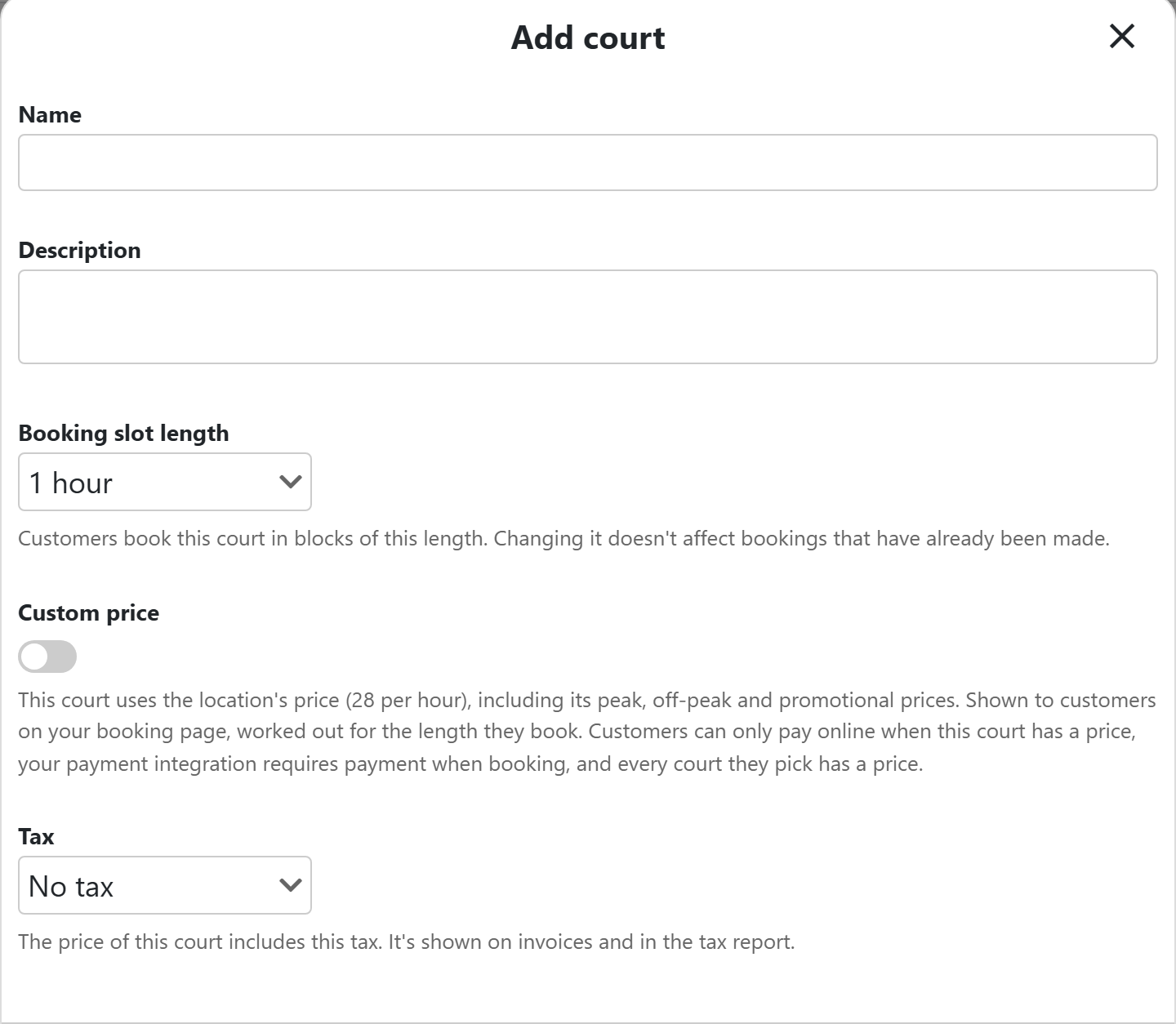
- Enter a Name and an optional Description. The description can appear on your booking page, for example in the cards layout.
- Choose the Location the court belongs to.
- Choose the Slot length. Customers book this court in blocks of this length. Changing it later doesn't affect bookings already made.
- Optionally set a Price per hour for this court (see below).
- If you charge GST, VAT or sales tax, choose the court's Tax rate. Prices include tax. See Set Up Taxes and Payment Methods.
- Select Save.
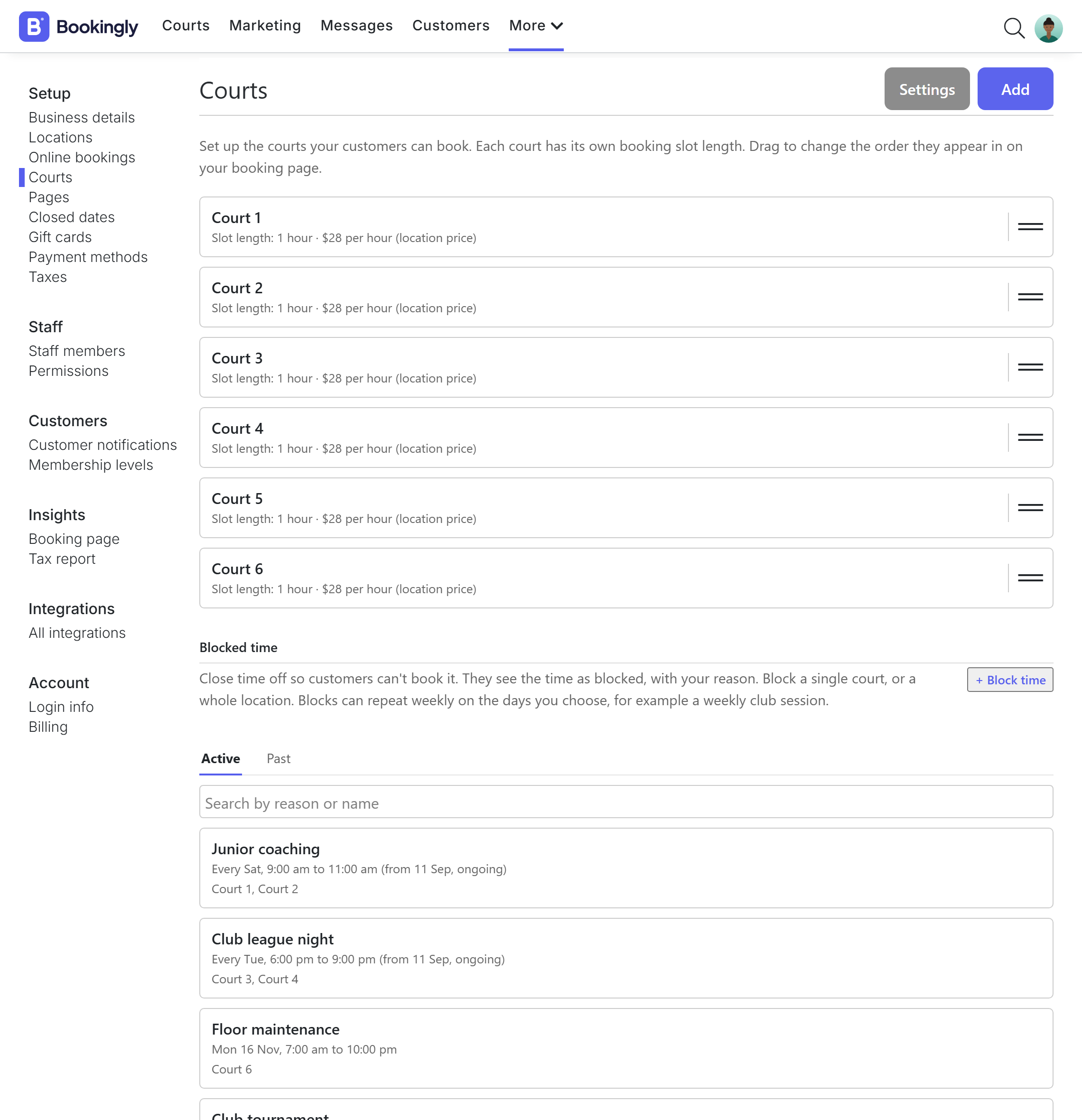
The page lists your courts by location with each one's slot length and price. Drag a court to change the order it appears in on your booking page. Courts that are no longer used are listed under Archived.
Make sure each location's opening hours are right, because courts can only be booked while the location is open. See Set Your Location's Opening Hours.
Set a price
You can price courts in two places.
- Location price per hour: open More > Setup > Locations, select the location and enter a Price per hour. Every court at the location uses it unless it has its own.
- Court price per hour: set on the court itself. This is its usual price instead of the location's. Enter 0 for no price.
Customers see the price on your booking page, worked out for the length of time they book. Customers can only pay online when every court they choose has a price, and payment is required at booking. See Take Online Payments with Stripe.
Peak, off-peak and promotional prices
On a location, under Peak, off-peak and promotional prices, select Add price rule or Add promotion.
Price rules charge a different price at certain times of the week:
- Days: choose the days it applies to, such as weekdays or weekends.
- Start and end time: the hours of the day.
- Price: either a Fixed price per hour, or a Percentage change that adds to or takes off the usual price.
- Applies to: every court, or only the ones you choose.
Promotions work the same way but run only between two dates, for example a summer discount. A promotion changes whatever price a court would otherwise have at that time.
Each rule can optionally have a name, and can be limited to a membership level. See Offer Member Prices with Membership Levels.
A preview table shows the prices that result, so you can check them before you save. Two rules can't cover the same times for the same courts. Change one if Bookingly tells you they overlap.
Good to know
- A fixed price rule only changes a court that has its own price when the rule is set up for that court. Percentage rules and promotions always apply.
- Changing prices doesn't change bookings that have already been made.