
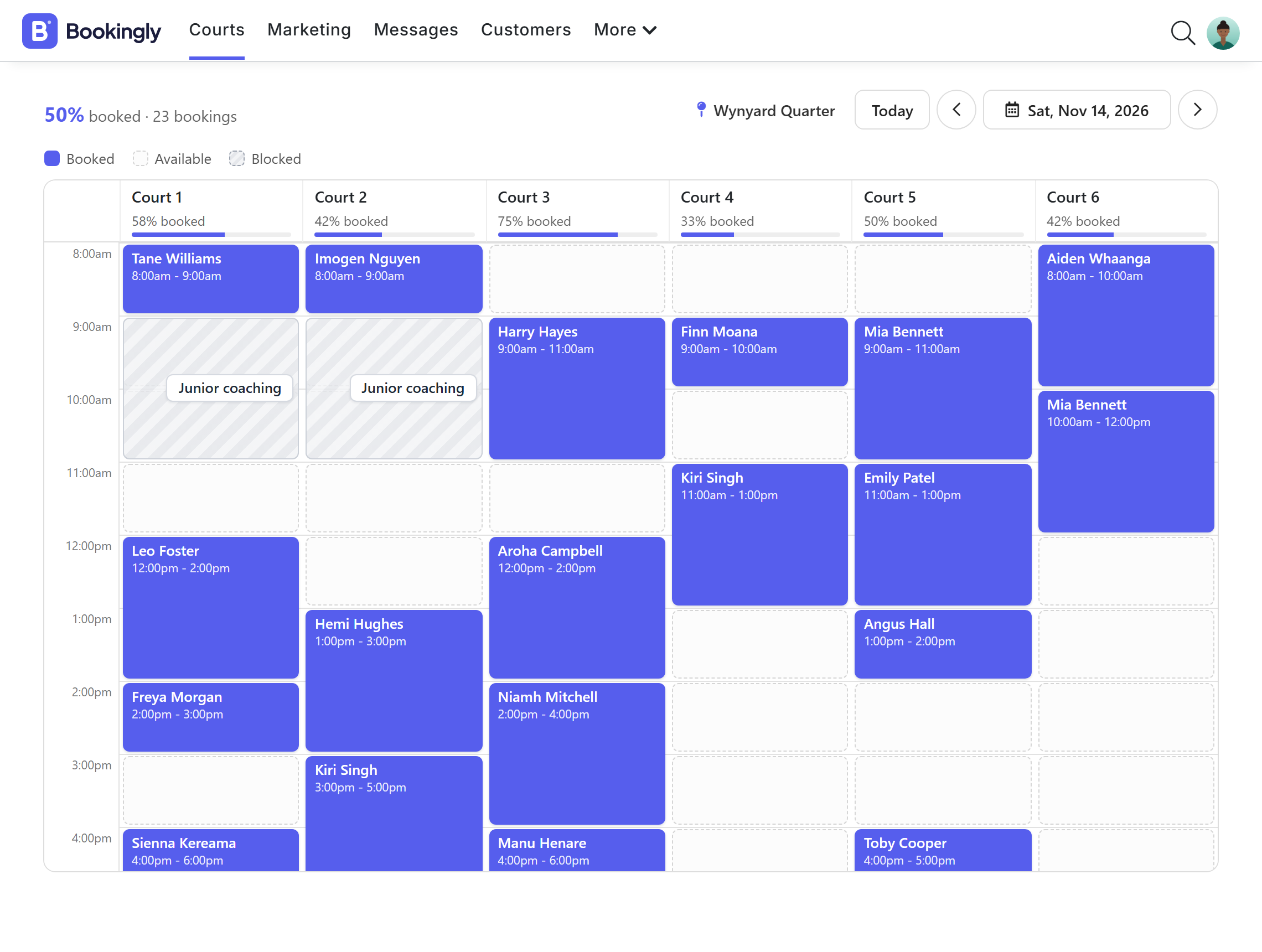
For a sports or facilities business, the calendar shows your courts as a timetable: each court is a column and the day's times run down the side. You use it to see what's free, add bookings for customers who phone or walk in, and look after bookings customers made online.
Read the timetable
- Open Calendar.
- If you have more than one location, choose it from the location list.
- Use the date picker, or select Today, to change the day.
Bookings appear as coloured blocks on the court and time they cover. Select a booking to see its details. Times that are Closed are shaded, and a time held while a customer finishes booking online shows as held. It becomes free again if the customer doesn't complete the booking in time. See Let Customers Book Several Courts and Times at Once.
At the top of the page you'll find a link to your live online booking page, with a button to copy it, and a shortcut to edit your online booking settings.
Add a booking
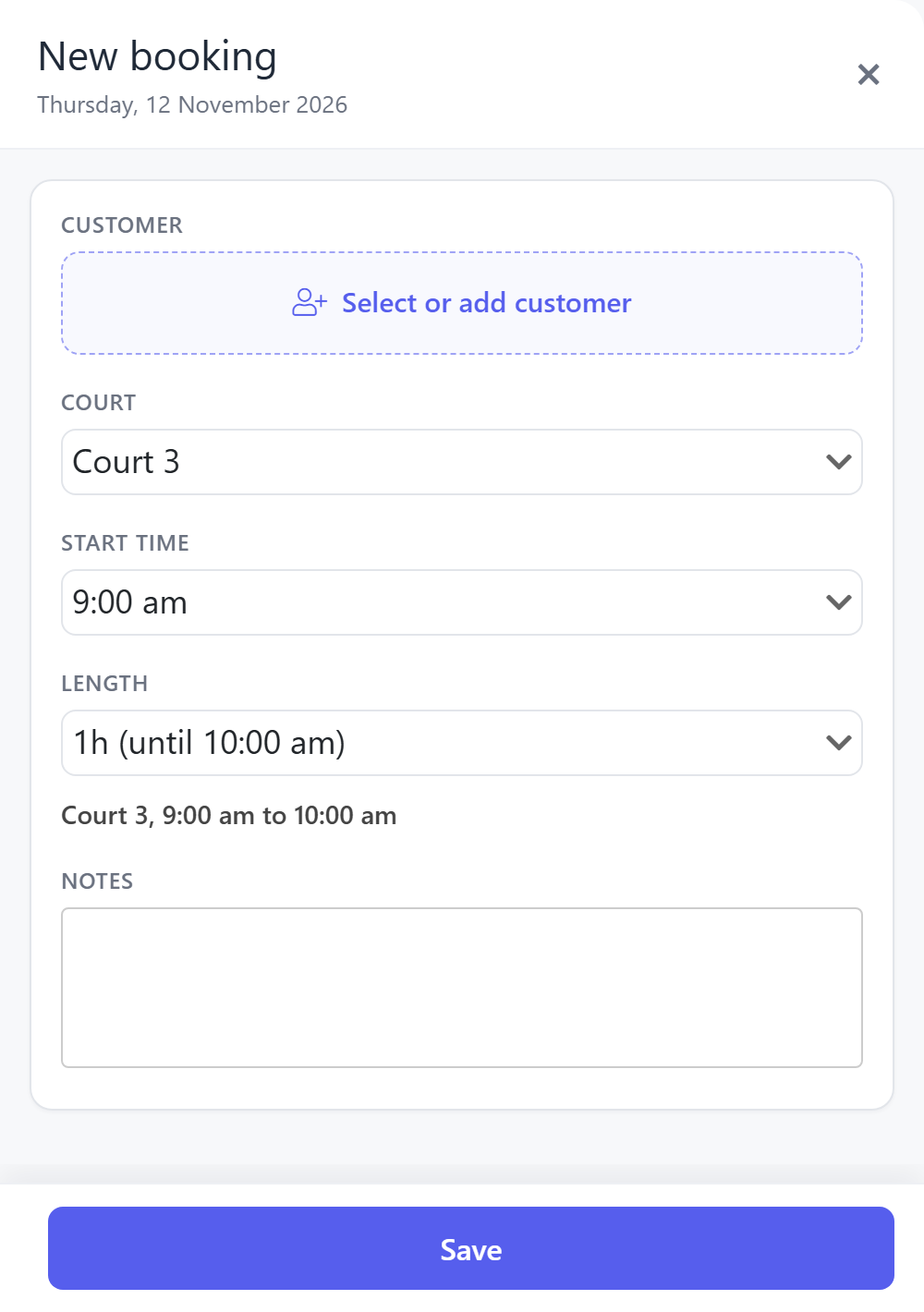
- Select a free time on a court.
- Choose the Customer, or add a new one.
- Check the court, Start time and Duration.
- Add Notes if you need to.
- Optionally tick the option to email the customer a confirmation.
- Save the booking.
If the time you chose is blocked, the window tells you ("This time is blocked...") and lists the reason. Customers can't book it online, but you can. If someone else takes the time first, you'll be asked to choose another.
Move a booking
You can drag a booking to a new time or court on a computer, or press and hold on a phone. You can also select the booking and choose Move. In the Move booking window, choose the court and new start time, and optionally tick the option to email the customer about the change.
Only free times can be chosen.
Cancel a booking and refund
Open the booking and cancel it. Cancelling is permanent and the time becomes available again.
If the customer paid online, you're offered the option to refund what they paid. If the booking was paid together with other bookings, their share is refunded. Bookingly confirms with a message, for example "Booking cancelled and $30.00 refunded". If the refund fails, you're told to refund the customer in Stripe yourself. See Cancel a Booking and Refund the Customer.
View the sale
For bookings paid for or invoiced, select View sale on the booking to open the invoice. See Make a Sale and Manage Invoices.
Search for a booking
Select the search button and enter a customer's name, phone number, email or a booking reference. Select a result to open it.
Block a court
To stop customers booking a court for maintenance or an event, block the time. You can give it a label customers see. See Block Time in Your Calendar.
Tips
- Check the location and day shown before you add or move a booking.
- Use the booking's Notes for anything the next person needs to know.