
If you run a sports and facilities business, you can give your members a different price from everyone else. You create one or more membership levels (for example "Member" or "Junior"), give customers a level, and add price rules that are only for that level. Members pay the member price when they are signed in to book.
Membership levels appear once at least one court or location has a price per hour.
Create a membership level
- Go to More > Customers > Membership levels.
- Select Add and enter a name, such as "Member".
- Choose a Badge: pick one of 8 icons (star, crown, diamond, heart, shield, bolt, trophy or medal) and one of 8 colours. A preview shows how it will look.
- Save.
You can have up to 10 levels, and each name must be different. To rename a level or change its badge, select it and make your changes.
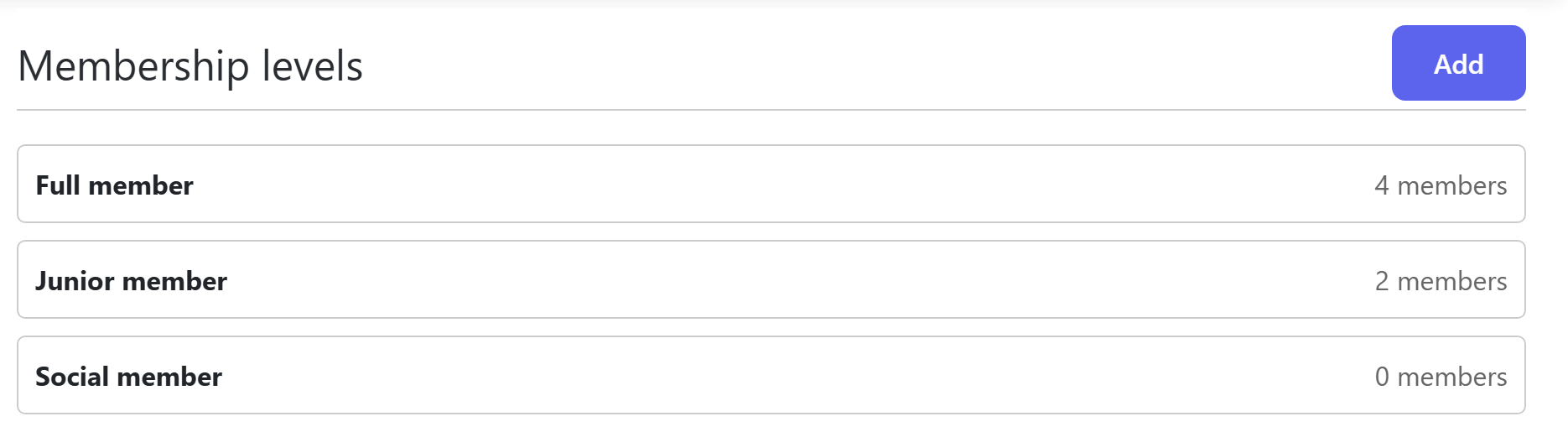
Each level on the Membership levels page shows its badge, its number of members and a short summary of its member prices (the price rules set up for that level), so you can see at a glance what each level gets. Select a level to see all of its benefits. Benefits are read-only here. To change them, edit the price rules on the location.
Badges
A badge is a small coloured icon that makes members easy to spot. It shows:
- beside the customer's name on the Customers list, and in the membership line under it;
- at the top of the customer's details, beside their name;
- on the Membership levels page.
Badges are only shown in your Bookingly account. They are never shown on your booking site, and customers don't see them. The name of the level is always shown as well, so the badge is a quick visual cue rather than the only way to tell levels apart.
See who is in a level
Select a level, then select the number of customers under Members. This opens the Customers page showing only the people on that level. If you have unsaved changes in the window, save them first.
You can also filter the Customers page yourself. When you have at least one membership level, a drop-down next to the search box lets you choose Everyone (the default) or a single level. The filter works together with the search box.
If you delete a level, its members become non-members and pay the standard price. You can't delete a level while a price rule is still set up for it. Remove or change those rules first.
Give a customer a level
- Open the customer from Customers.
- Under Membership, choose their Membership level.
- Save.
To make someone a non-member again, choose Not a member.
You can also set levels for many customers at once by adding a Membership level column to your customer import file, using the level names exactly as they appear under Membership levels. Leave a cell blank for a non-member. The import shows a preview of the changes before anything is saved, and the customer export includes the column. A name that doesn't match one of your levels is reported as an error, and nothing is imported until you fix it. If you leave the column out of the file, memberships are left as they are.
Let customers apply with a membership form
Instead of setting levels by hand, you can give customers a link to a membership form. They answer your questions, apply (and pay, if you charge), and when the application is approved they are given the level automatically.
- Go to Members in the top menu and select Add.
- Name the form and choose the membership level it gives.
- Add your questions, choose whether to take payment and whether to approve applications automatically, and set how long the membership lasts.
- Save, then share the link shown for the form (it looks like
yourbusiness.bookingly.com/memberships/your-form-name).
Customers sign in, fill in the form and apply. Free forms, and paid forms without automatic approval, wait on the Members page for you to approve or decline. Once approved, the customer pays the member price when they sign in to book, until the membership ends.
For all the options, including payment, end dates and renewal reminders, see Let Customers Apply for a Membership.
Add a members only price
Member prices are price rules. You add them to a location, along with any peak, off-peak or promotional prices.
- Open the location under More > Setup > Locations.
- Under Peak, off-peak and promotional prices, select Add price rule (or Add promotion for a price that runs between two dates).
- Under Who pays this, choose the membership level. The default is Everyone.
- Choose the days and times, then either a fixed price per hour or a percentage change, for example 20% off.
- Choose whether it applies to all courts or only some.
- Save the location.
A members only price is applied last, on the price everyone else would pay at that time. So a member gets their discount on top of any peak or off-peak price. Rules for a level also show with a tag on the list, so you can tell them apart from rules for everyone.
What customers see
- A signed-in member sees the member price on the booking grid, and is charged it at checkout.
- Everyone else, including guests, sees and pays the standard price. Member prices are worked out on our servers, so they are never shown to customers who aren't members.
- A guest who types in a member's details is still a guest and pays the standard price. Members need to sign in.
Good to know
- A customer who joins through membership forms can hold more than one level. When prices differ, the first of their levels in your Membership levels order is used.
- Levels you set by hand don't expire by themselves. Change or remove a customer's level when their membership ends. Memberships from a membership form end on the date set on the form.
- To charge for the membership itself, either use a membership form that takes payment, or collect the payment outside Bookingly. Bookingly applies the member price to court bookings.