
A package is a number of sessions sold together at one price, for example "5 massages for $400". The customer pays once, and each time they come in, a session is used up instead of paying again.
Packages are for businesses that book services. Sports and facilities businesses don't have them.
Create a package
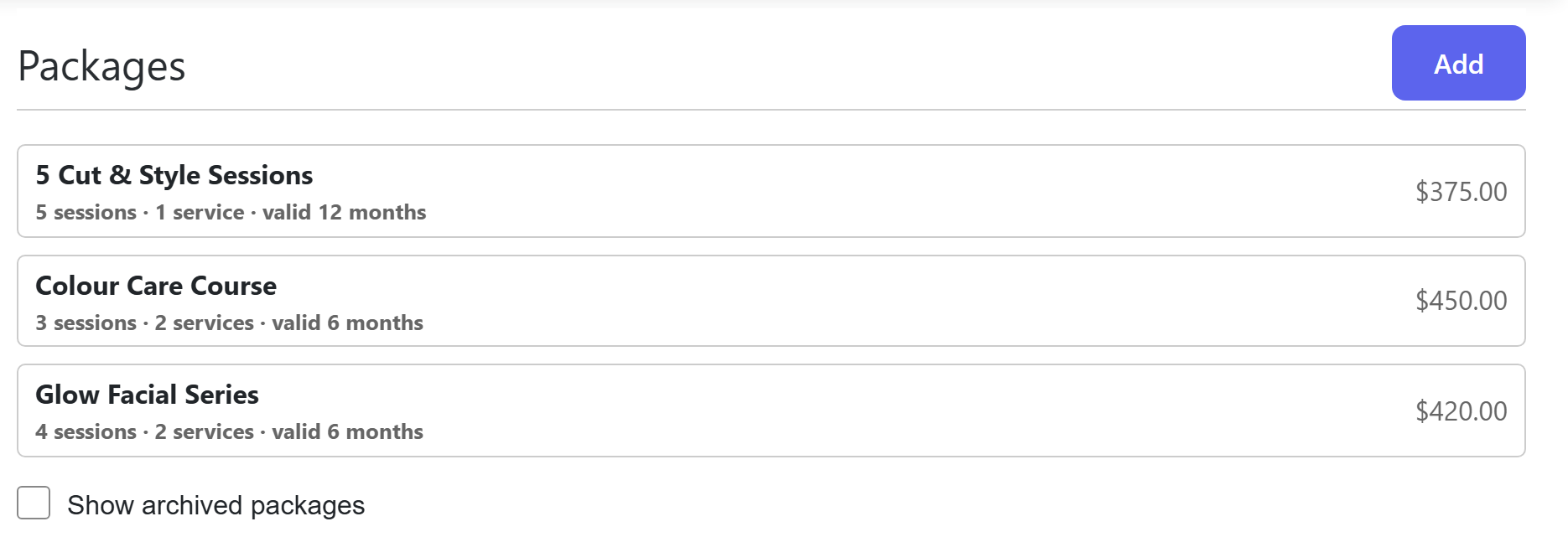
- Go to More > Setup > Packages.
- Select Add (or Add package if you have none yet).
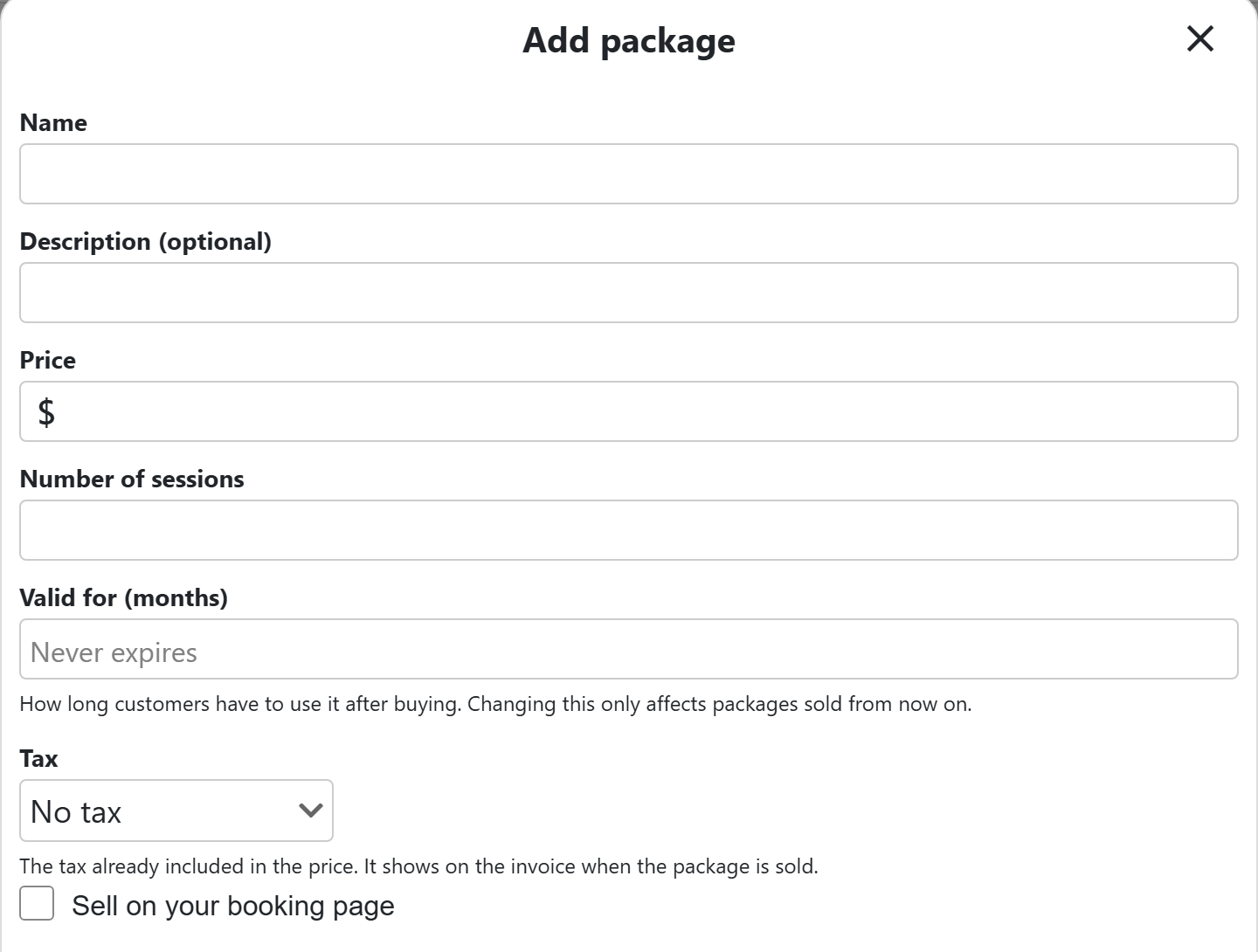
- Fill in the details:
Field | What to enter |
|---|---|
Name | What staff and the customer will see, for example "5 massages". |
Description | Optional notes for your own reference. |
Price | What the customer pays for the whole package. |
Number of sessions | From 1 to 100. |
Valid for (months) | How long the customer has to use it after buying. Leave empty if it never expires. |
Tax | The tax already included in the price, if any. It shows on the invoice when the package is sold. This only appears once you have set up a tax rate. See Set Up Taxes and Payment Methods. |
Sell on your booking page | Tick this to offer the package in your online shop. |
Services it can be used for | Tick every service the sessions can be spent on. Choose at least one. |
- Select Save.
You need the Manage services permission to add or change packages.
Change or archive a package
Select a package to edit it. Changes to the price, number of sessions and validity only apply to packages sold from then on. Customers keep what they bought. Changing which services a package covers applies to packages already sold as well.
To stop selling a package, open it and select Archive. Customers who already bought it can still use their sessions. Tick Show archived packages to see archived ones and Restore them.
Sell a package
- Start a sale, or open a customer's checkout, and choose the customer.
- Select Add item to cart and open the Packages tab.
- Select the package to add it to the cart.
- Take payment as usual.
The Packages tab appears once you have at least one package on sale. The price can be changed on the cart line like any other item, for example to give a discount. You can sell up to 20 of the same package in one sale. Each one goes to the customer as its own set of sessions.
Discount codes don't take anything off a package. The tax on a package is worked out when it's sold, from the tax rate on the package, and the services the customer later uses with the package are free at checkout, so no tax is worked out on them again.
Use a package at checkout
When the customer has a package that covers a service in the cart and still has enough sessions, the cart line shows Use [package name] (3 left).
- Select Use on the service.
- The line changes to Paid with [package name] and its price drops to nothing.
- Take payment for anything else in the cart, or finish the sale if nothing is left to pay.
Select Remove to take the package off and put the price back. If the line has a quantity of 2, two sessions are used.
Sessions are only taken off when you confirm the payment. A package isn't offered if it has expired, has no sessions left, or doesn't cover that service.
Customers using a package when they book online
A customer who is signed in on your booking site and has a package that covers the service they are booking sees a Use a package choice on the last step. They choose the package instead of Pay as usual, and the booking is confirmed straight away with nothing to pay. One session pays for one booking.
- A session is set aside for the booking when it is made, so nobody can use it twice. It comes off the package when you check the booking out.
- At checkout, the service is already marked Paid with [package name] (booked online) at no charge. You don't need to choose Use.
- If the booking is cancelled before then, the session goes straight back on the package.
- A package can't be combined with a discount code or gift card on the same booking, and guests can't use packages because packages belong to a customer account.
- Sessions set aside for upcoming bookings don't show as available when you use a package at checkout for another booking.
Good to know
- Customers can buy packages on your booking site if you switch them on in your online shop. See Set Up Your Online Shop.
- Using a package works the same for a booking you check out from the calendar and for a sale you create from scratch, as long as a customer is selected.
- If you want to give a customer a free session or fix a mistake, sell or edit a package at a different price rather than changing the sale afterwards.
- Gift cards work well alongside packages. See Sell Gift Cards and Accept Them as Payment.