
Your online shop is a Shop page on your booking site. Customers choose gift cards, packages and products, pay online, and you get the sale. It's for businesses that book services. Sports and facilities businesses don't have it.
What you need first
- A payment integration. Customers pay online, so connect one such as Stripe and make sure it's switched on. See Take Online Payments with Stripe. It doesn't have to be set to require payment for bookings.
- For gift cards: gift cards must be turned on. See Sell Gift Cards and Accept Them as Payment.
- For products: Sell products must be on under Business details, and you need some products. See Add and Manage Products.
- For packages: you need at least one package. See Sell Packages and Use Them at Checkout.
Switch on what you want to sell
- Go to More > Setup > Online shop.
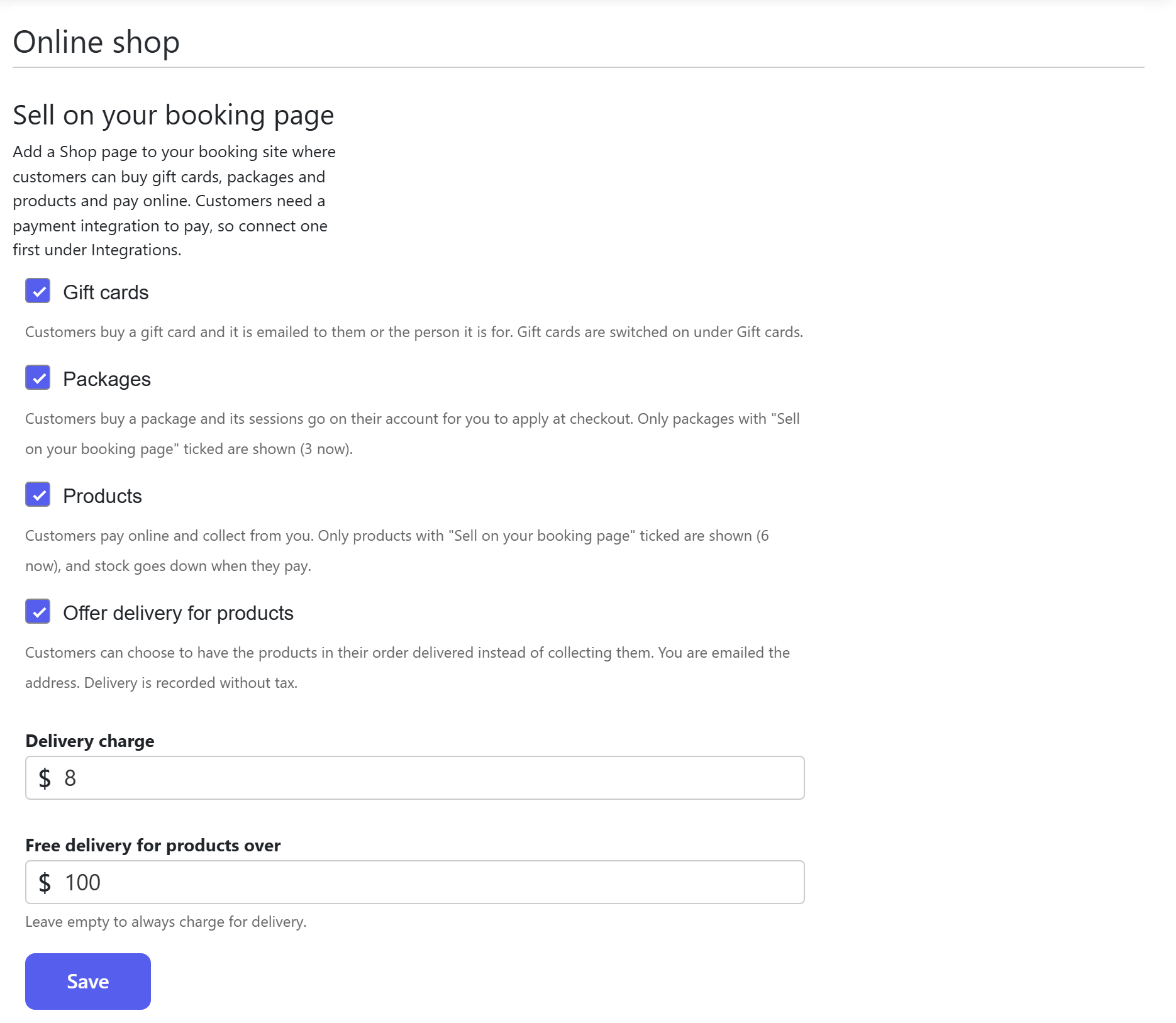
- Tick the things you want on your booking site: Gift cards, Packages and Products.
- Select Save.
If something can't be turned on yet, the page tells you what is missing. You need the Manage online booking setup permission.
Each is separate, so you can sell only gift cards, or only products, or all three. The Shop link then appears in the menu of your booking site. If you only sell gift cards, the link is called Gift cards.
Choose which packages and products appear
Switching packages or products on doesn't list everything you have. Only the ones you tick appear, so back-bar stock or private packages are never shown by accident.
- Products: open the product under More > Setup > Products and turn on Sell on your booking page.
- Packages: open the package under More > Setup > Packages and tick Sell on your booking page.
The Online shop page shows how many of each are listed right now. A product or package also needs a price above zero to appear. Archived items never appear.
Offer delivery
Products can be delivered as well as collected.
- On More > Setup > Online shop, make sure Products is ticked, then tick Offer delivery for products.
- Enter the Delivery charge.
- Optionally enter an amount for Free delivery for products over. Orders where the products come to that much or more get free delivery. Leave it empty to always charge.
- Select Save.
Customers then choose Collect from us or Deliver to me in their basket. For delivery they enter an address and an optional phone number for the courier. The charge only applies to products, so a basket of packages has nothing to deliver. Delivery is recorded without tax.
Collecting from different locations
If you have more than one location, a customer buying products picks the location they'll collect from, or the one the order is sent from. The stock shown is that location's stock, and it's that location's stock that goes down when they pay. The sale is recorded against that location too. With one location there's nothing to choose.
What happens when a customer orders
- Packages: the customer's sessions go on their account straight away. When they next visit, you choose Use on the service at checkout, or they choose the package themselves when they book online. See Sell Packages and Use Them at Checkout.
- Products: the customer pays online and either collects the product from you or has it delivered, if you offer delivery. Stock goes down when they pay, if you track stock for the product.
- You are told: you get an email with what was ordered, who it's for, any note, and where to deliver it or which location it's collected from, so someone can get it ready. It goes to the email address under Business details.
- The customer gets a receipt by email.
- The sale appears on your Sales page as an invoice, paid through your online payment method. Tax is worked out from each product's tax rate at the location the order is for, and from the tax rate on each package. A delivery charge shows as its own line.
- The buyer becomes a customer. Every sale belongs to a customer, so the buyer is added using the email they gave. If that email already belongs to one of your customers, the sale goes on that customer. A new customer is marked as not wanting marketing emails or texts, so buying doesn't put anyone on your newsletter list.
Good to know
- If a product is out of stock, its button shows Sold out, and customers can't order more than you have.
- Prices come from your catalogue, never from the customer's browser, so they can't be changed at checkout.
- A customer who backs out of paying isn't charged and nothing is handed out.
- Delivery is recorded without tax.
- See What Customers See in Your Online Shop for the customer's side.