
The Customers page lists everyone who has booked with you or been added by your team. Open a customer to see their details, bookings, notes, forms and files in one place.
Find a customer
- Open Customers from the main menu.
- Type a name, mobile number or email into the search box.
Each row shows the customer's name, mobile number and email. If you run a sports or facilities business with membership levels turned on, their membership level is shown too, along with the level's badge beside their name. A drop-down next to the search box lets you show Everyone or only the members of one level. Small labels mark customers who are New, a Guest (booked without an account) or Blocked.
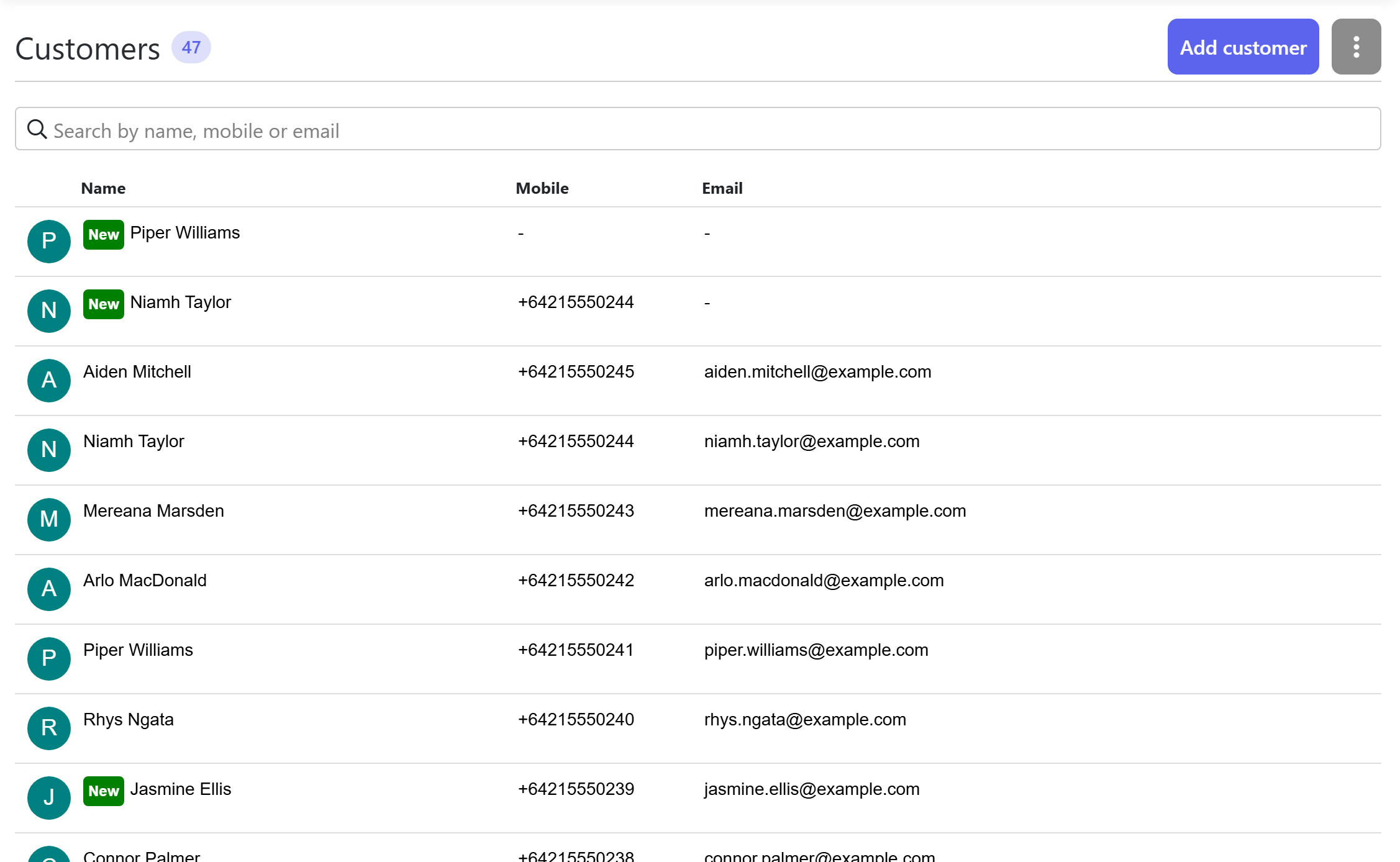
Add a customer
- On the Customers page, select Add customer.
- Enter their First name (required). Last name, email and mobile number are optional, but without an email or mobile number Bookingly can't send them confirmations or reminders.
- Add any other details you want, then select Save.
Customers are also created automatically when someone books online, or when you add a booking for a new person. To add many at once, see Import and Export Customers.
What's on a customer's profile
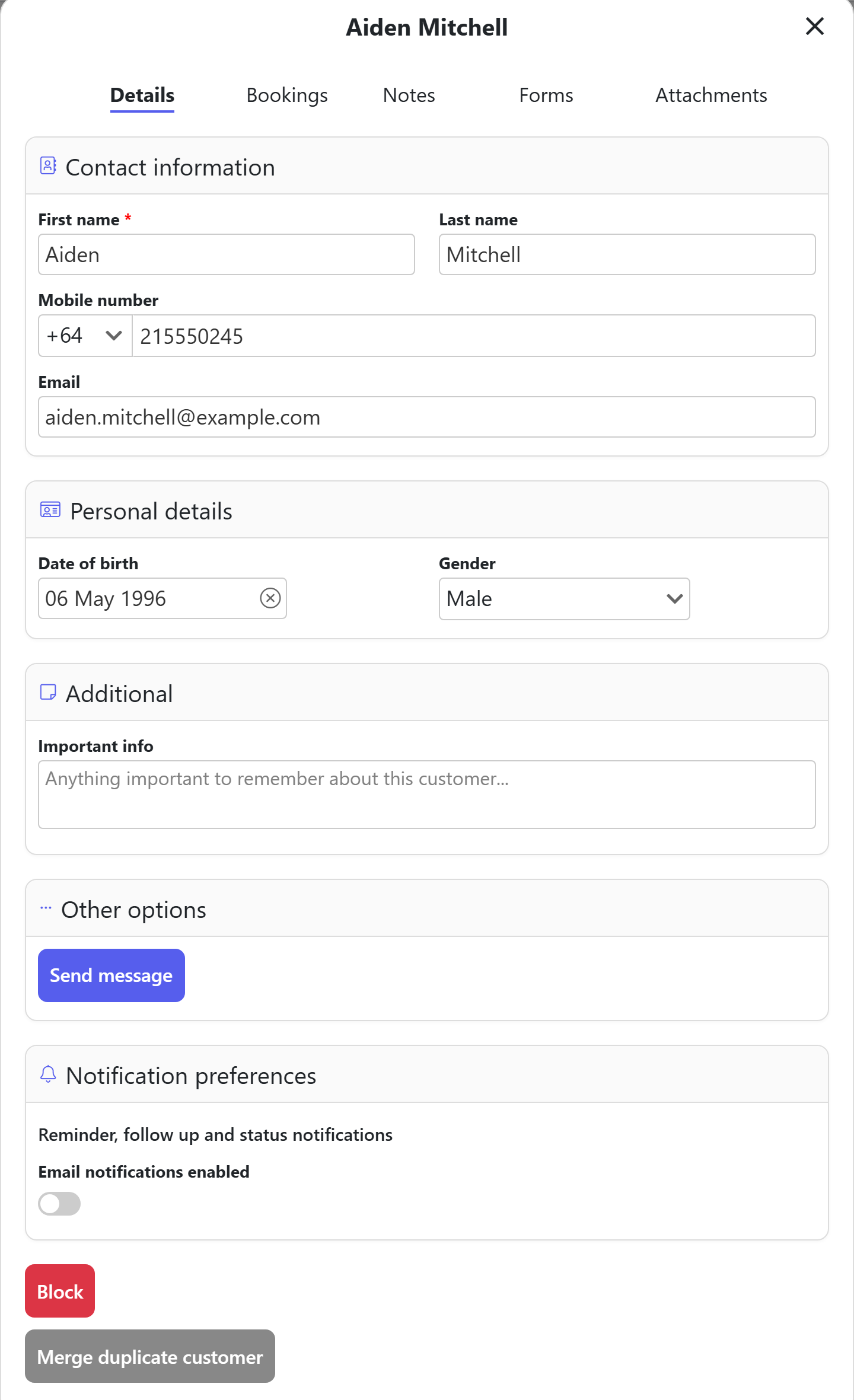
Select a customer to open their profile. It has these tabs:
Tab | What it's for |
|---|---|
Details | Name, contact details, date of birth, gender, membership level (where used, with its badge shown beside the customer's name), important info and notification preferences. |
Bookings | Every booking made by or for this customer. |
Notes | Internal notes your team can read. Customers never see them. |
Forms | Forms this customer has been asked to complete, and their answers. Not shown for sports and facilities businesses. See Collect Answers and Consent with Forms. |
Attachments | Files you upload for this customer, such as consent forms or photos. |
Changes on the Details tab are only kept when you select Save. If you try to leave with unsaved changes you'll be asked to confirm.
Important info
Use Important info for anything your team should know before an appointment, for example allergies or access needs.
Notes
Type a note on the Notes tab and send it. Each note shows who wrote it. You can edit or delete your own notes, and other staff members' notes if your permission role allows it.
Attachments
Select Upload files on the Attachments tab to add files. Select a file to view or download it. Deleting an attachment depends on your permission role.
Message a customer
Open the customer and select Send message under Other options to write to them directly. Messages you send are listed under Messages.
Notification preferences
These switches control what Bookingly is allowed to send this customer:
- Email notifications enabled: booking confirmations, reminders and other emails about their bookings.
- SMS notifications enabled: the same by text message. Only shown if text messaging is turned on for your account.
- Email marketing enabled and SMS marketing enabled: campaigns and newsletters.
Customers can also switch marketing off themselves with the unsubscribe link in an email. After that they are skipped on future campaigns.
Block a customer
Blocking stops a customer from making new online bookings. You can still add bookings for them yourself.
- Open the customer.
- Under Other options, select Block and confirm.
To let them book online again, open the same customer and select Unblock.
Editing details, notes, attachments, importing, exporting and blocking each depend on your permission role. If you can't see an option, ask the account owner. See Create and Edit Permission Roles.