
Customer notifications are the automatic messages Bookingly sends about a booking, such as a reminder the day before or a note when a booking is cancelled. You decide which ones are sent, by email or text message, and what they say.
Managing customer notifications depends on your permission role. If you can only view them, the settings are shown but can't be changed.
To set up the messages your team receives, see Staff Notifications.
Open the notifications
Open More > Customers > Customer notifications. The notifications are grouped into:
- Reminders: sent before a booking starts.
- Booking changes: sent when a booking is confirmed, rescheduled or cancelled.
- Aftercare: sent after the visit, such as a thank-you or a did-not-show message. Not used by sports and facilities businesses.
Each notification is shown as a card with a short description and, for reminders, when it is sent. The cards have switches to turn the email and SMS versions on or off. Text messaging only appears if it is turned on for your account.
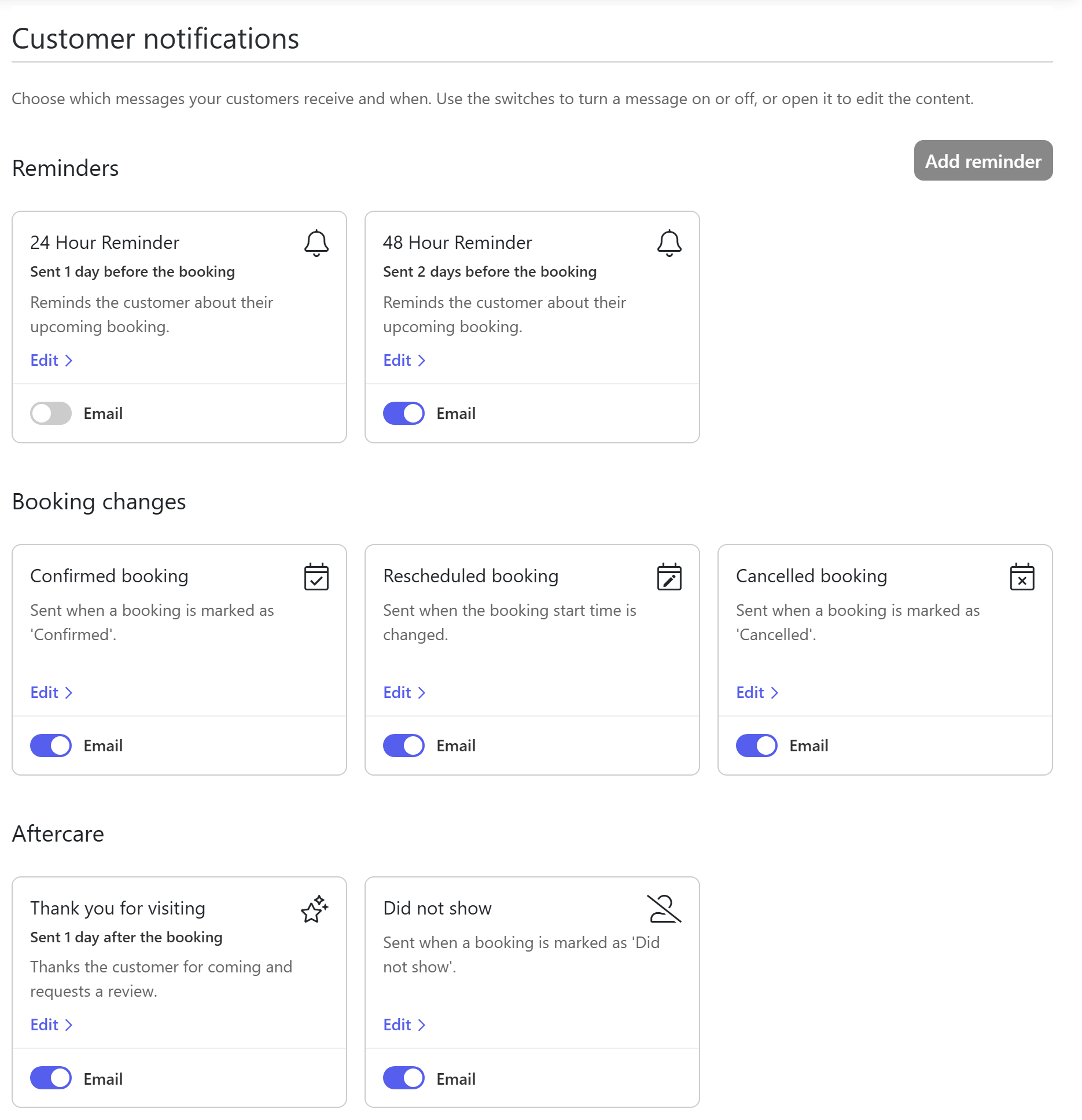
What each notification does
Notification | When it is sent |
|---|---|
Reminder | Before the booking is due to start, at the time you choose. |
Confirmed | When a booking is marked as Confirmed. |
Unconfirmed | When a booking is created in an Unconfirmed state. |
Rescheduled | When the booking's start time is changed. |
Cancelled | When a booking is marked as Cancelled. |
Did not show | When a booking is marked as Did not show. |
Thank you for visiting | After the visit. Thanks the customer and asks for a review. |
Sports and facilities businesses don't use Confirmed, Did not show or Thank you for visiting.
See Booking Statuses and Did Not Show for when each status is used.
Edit a notification
- Select a notification card.
- For each channel (Email and, if available, SMS), turn it on and edit the content. The Preview beside the editor shows what the customer will see.
- Select Save.
You must enter content for any channel you turn on. If both channels are off, the page warns you that customers won't receive the notification.
Placeholders
Placeholders are replaced with the real details for each booking. Select one to insert it where your cursor is:
Placeholder | Becomes |
|---|---|
| The customer's name. |
| Your business name. |
| When the booking is. |
| The booking reference. |
| The staff member (not available for sports and facilities). |
| Details of the location. |
| A link to directions. |
| A link to your booking page. Use this in text messages. |
| A Book now button linking to your booking page. Use this in emails. In a text message it becomes the plain link. |
| A link where the customer can view or change their booking. Use this in text messages. |
| A Manage booking button for the same link. Use this in emails. In a text message it becomes the plain link. |
| The instructions you set for the location. |
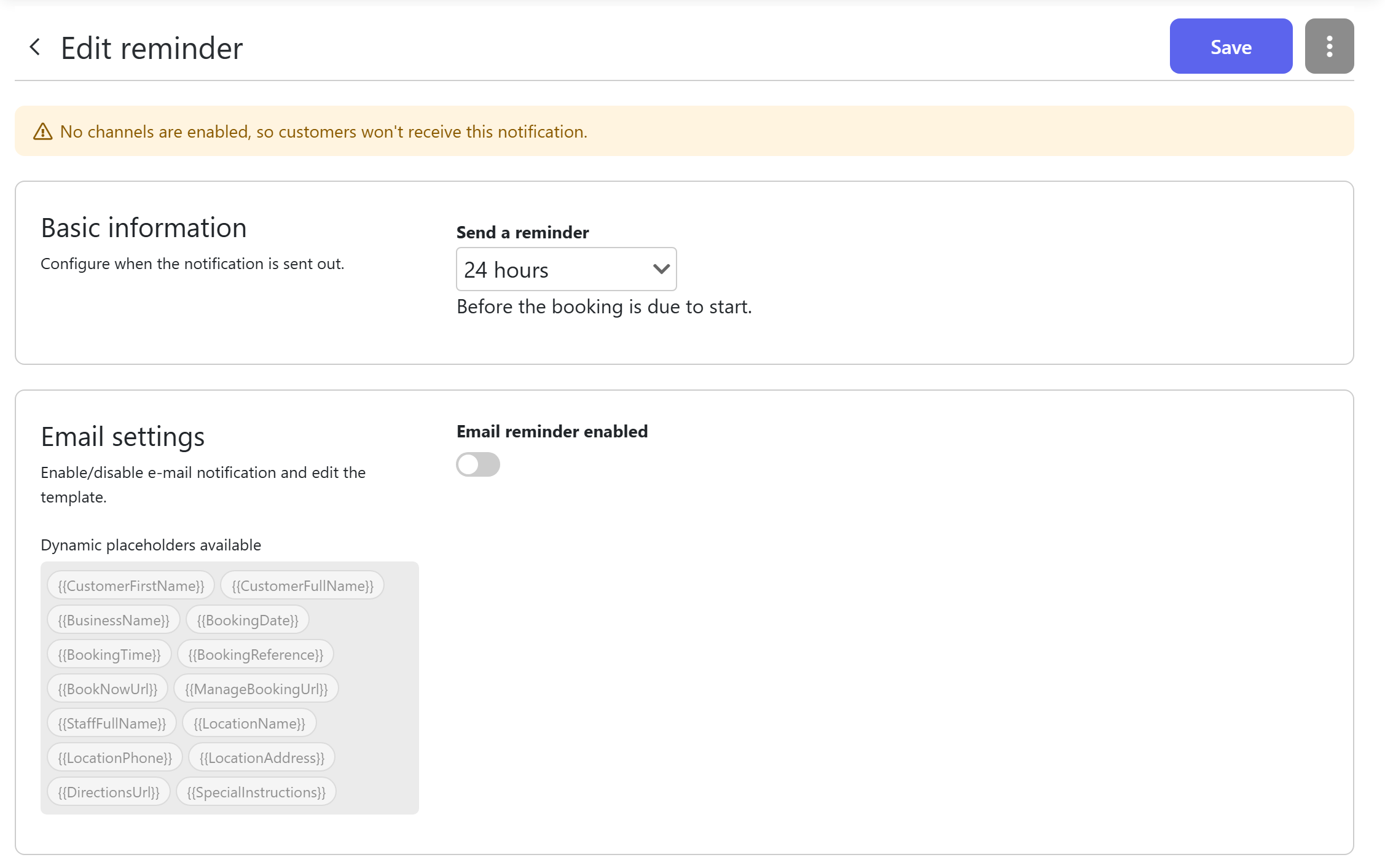
Reminders
You can have more than one reminder, for example one a day before and another two hours before.
- In the Reminders section, select Add reminder.
- Under Send a reminder, choose how long before the booking it should be sent.
- Set up the email and SMS content and select Save.
Each time can only be used once. When every available time is in use, the Add reminder button is hidden. To remove a reminder, open it and select Delete.
Customers who opt out
A notification is only sent to a customer who has that channel switched on. Check a customer's Notification preferences on their profile if someone says they aren't receiving messages. See Add and Manage Your Customers.