
The Messages page is the record of every email and text message sent to your customers. That includes booking confirmations and reminders, campaigns and newsletters, and messages you write yourself. Use it to answer "did the customer get it?".
Messages are outgoing only. Customer replies don't appear here. Text messages only appear if text messaging is turned on for your account.
See what has been sent
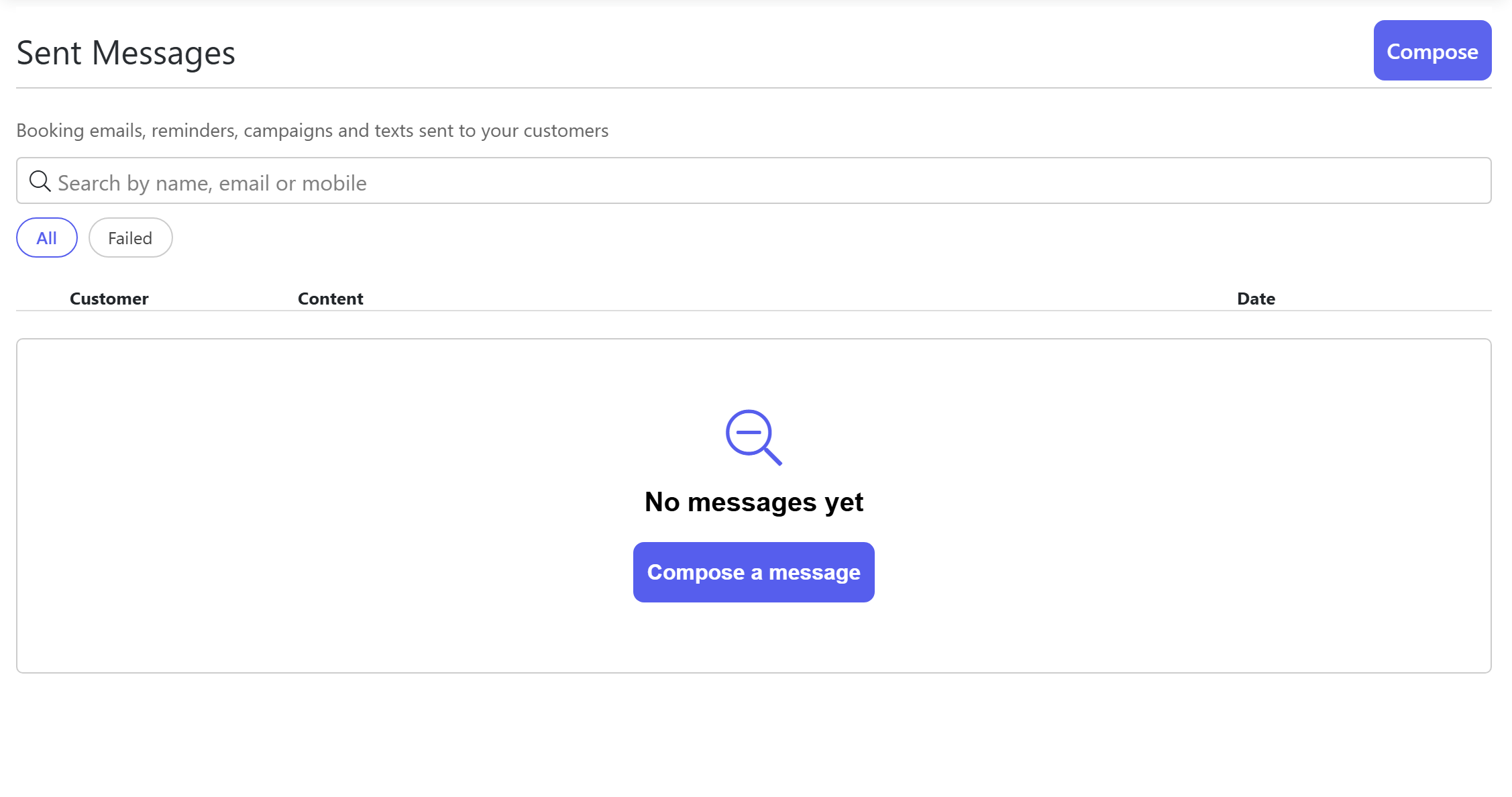
Open Messages from the main menu. The newest messages are first, each showing the customer, the type (email or text), a preview and its status.
- Search by customer name, email or mobile number.
- Filter with All, Email, SMS or Failed. Failed is the quickest way to find customers who didn't get something important.
Select a message to read it in full and see the delivery details.
What the statuses mean
Each message shows a status icon. Hover over it, or open the message, to see the label.
Status | Meaning |
|---|---|
Sent | Bookingly has sent it and is waiting for confirmation. |
Delivered | It reached the customer's inbox or phone. |
Read | The customer opened it. Email only, and not every email app reports opens, so a message may have been read even if it doesn't say so. |
Failed | It couldn't be delivered. Open the message to see the reason and time. |
User marked as spam | The customer reported the email as spam. They won't be sent marketing emails, so check their details before contacting them again. |
Open a message and select Info for the full timeline: when it was delivered, when it was read (and how many times), and any failure reason.
If a message failed
The most common causes are a mistyped or out-of-date email address or mobile number. Open the customer, correct the detail, and send a new message. See Add and Manage Your Customers.
Send a message
You can write to one customer directly.
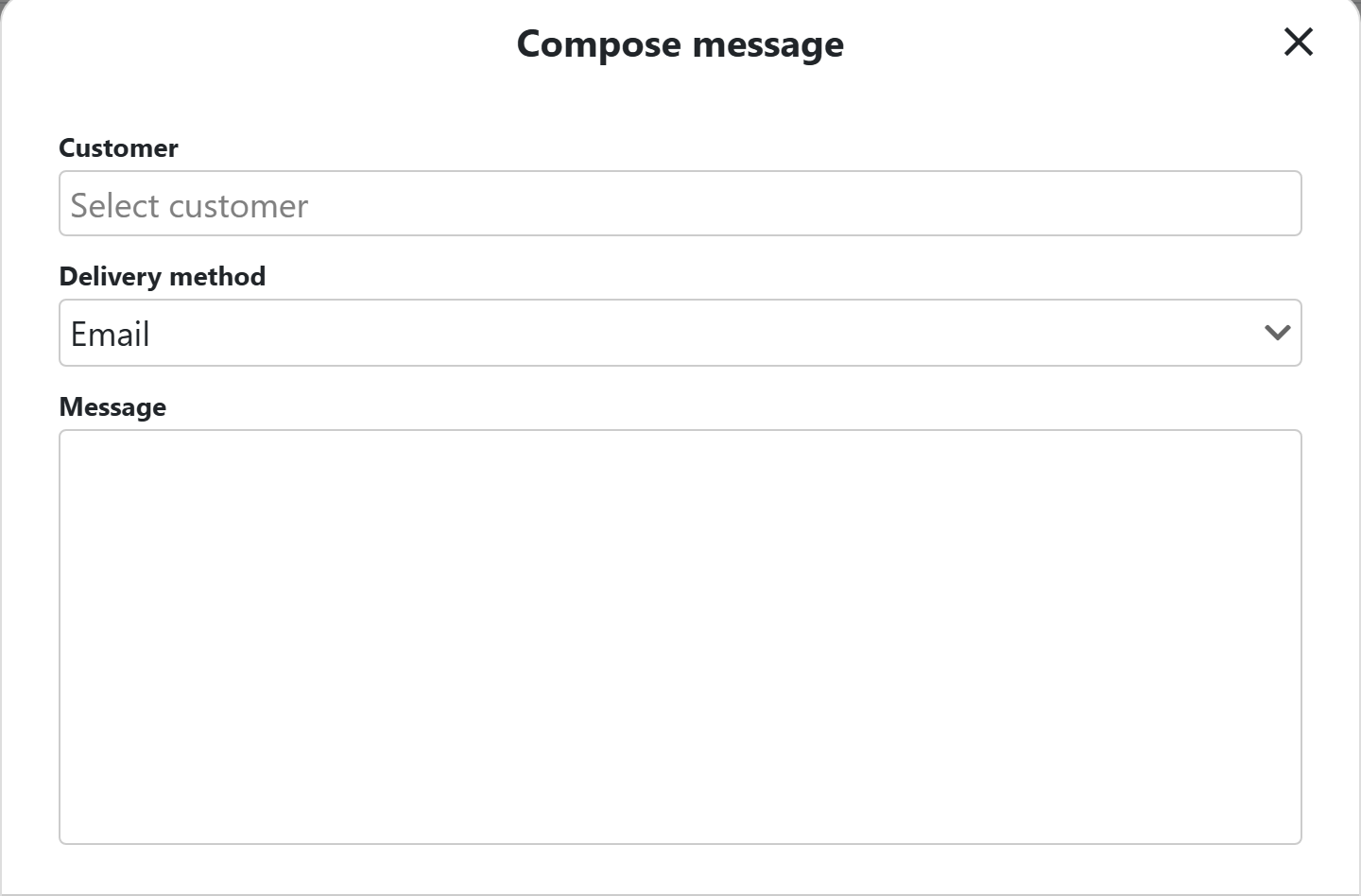
- Open Messages and select the compose button, or open a customer and select Send message.
- Choose the customer if you didn't start from their profile.
- Choose Email or SMS.
- Type the message and select Send.
You'll see "Message sent" and it appears in the list. A method that the customer has no contact detail for can't be chosen. If they have no email address or no mobile number, add one to their profile first.
To write to many customers at once, use a one-off campaign or a newsletter instead.
Related
- Customer Notifications and Reminders for the automatic messages.
- Set Up Automated Campaigns for welcome, birthday and win-back messages.