
Once you've built a form and attached it to a service, customers are asked to complete it before their appointment. This article is about following up: seeing who has done it and nudging those who haven't.
This works the same way for sports and facilities businesses. A court or room booking shows its forms in Manage booking. See Waivers and Forms for Courts, Rooms and Studios.
See who has completed a form
Open Customers, select a customer and open their Forms tab. Each form they've been asked to complete shows:
Status | Meaning |
|---|---|
Completed | They've submitted it. The date and time are shown, and you can read their answers. |
Waiting | They haven't completed it yet. |
Each entry also shows which service and appointment date it relates to. If a customer hasn't been asked to complete any forms, the tab says so.
Forms attached to a booking can also be seen from the booking itself.
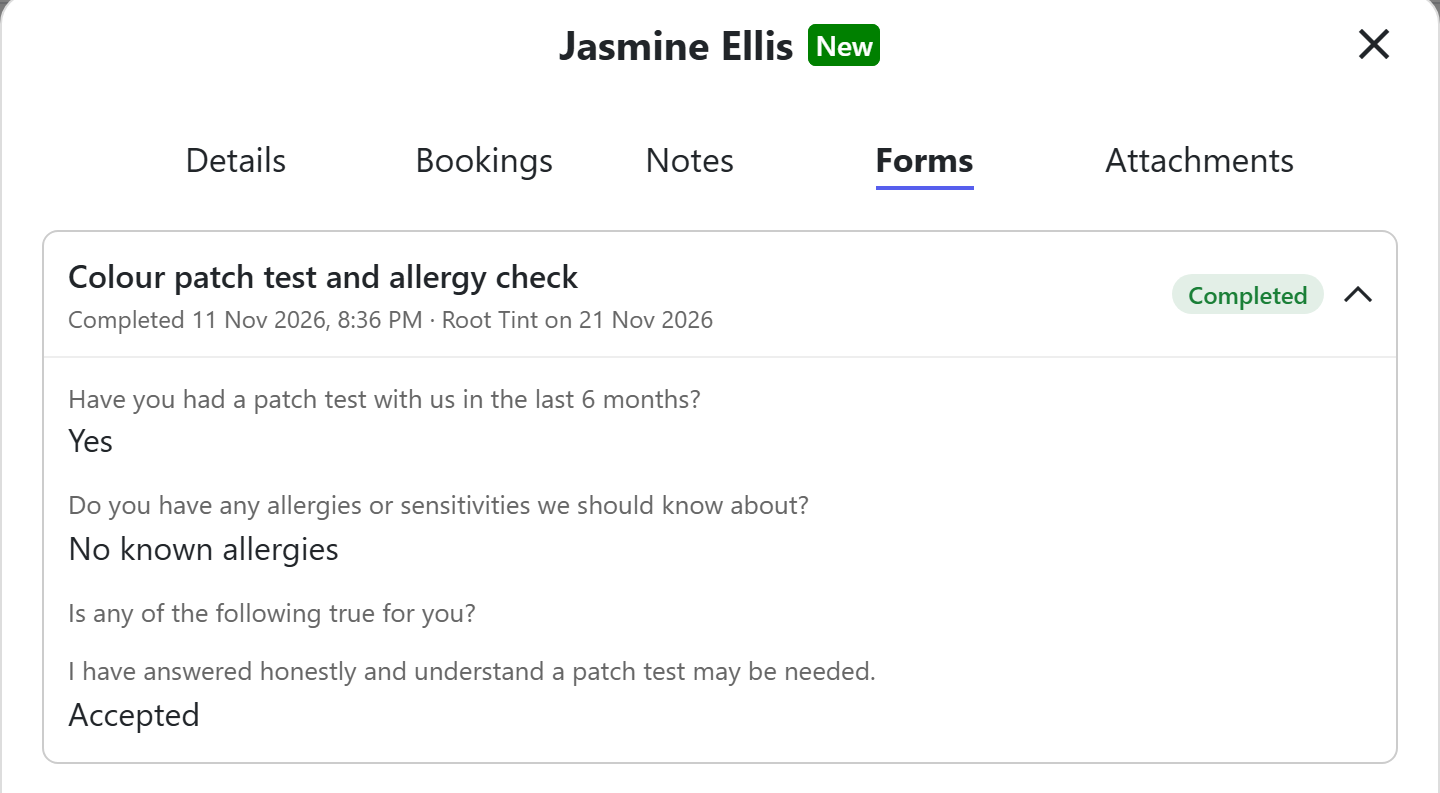
What the line under a form tells you
For forms sent by email, the details show what has happened:
- Waiting to be sent: the email hasn't gone out yet.
- Link emailed, with the date and time it was sent.
- Not sent: customer has no email address: the customer has no email on file, so the link can't be emailed. Add an email address to their profile, then send the link. See Add and Manage Your Customers.
- Completed, with the date and time.
If a form was completed but the customer gave no answers (every question optional), it shows "No answers were given".
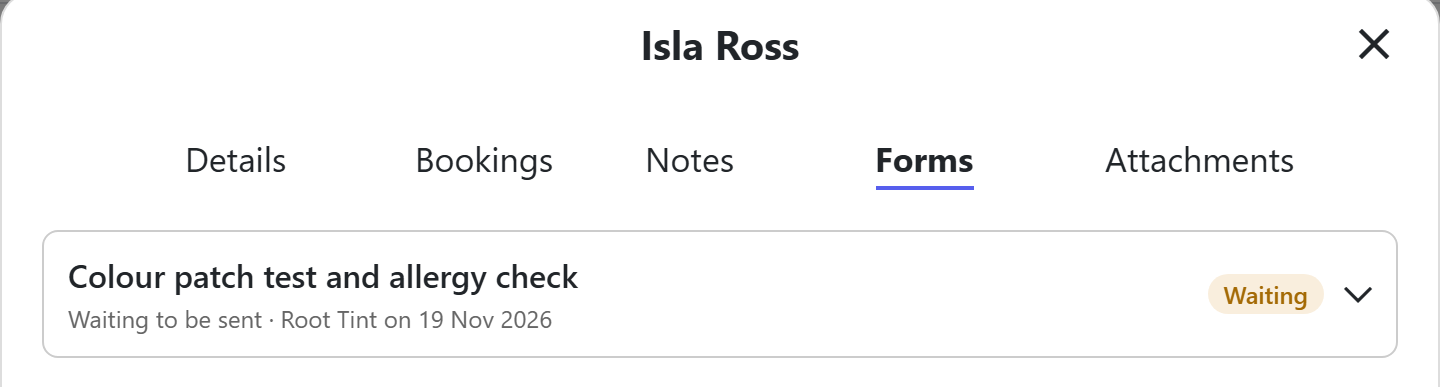
Resend a link
If a customer says they didn't get the email, or lost it:
- Open the customer's Forms tab.
- Find the form marked Waiting.
- Select Send link (or Resend link if it was already sent).
The customer gets the link by email. Check the Messages page if you want to confirm it was delivered. See View and Send Messages to Customers.
What customers see
The email contains a link to a page with the form's questions. They fill it in and submit. Then:
- If they open the link again after submitting, they see Already completed: "This form has already been submitted. No further action is needed."
- If the booking was cancelled, they see Booking cancelled: "This booking has been cancelled, so the form is no longer needed."
- If the link is wrong or out of date, they see Form not found.
Tips
- If many customers are leaving forms until the last minute, consider asking for the form during booking instead. See Collect Answers and Consent with Forms.
- Check the Forms tab before an appointment to be sure consent and health information are in.