
Sometimes the same person ends up in your customer list twice, for example when they book online with a different email address, or a team member adds them without noticing they already exist. Merging combines the two records into one so all their history is in a single place.
Merging is controlled by the permission to update customer details. If you don't see the option, ask the account owner to update your permission role.
What merging does
You choose one customer to keep and one duplicate to merge in. Bookingly then:
- Moves the duplicate's bookings, invoices, notes, attachments, messages, form responses and discount code uses to the customer you kept.
- Removes the duplicate customer.
- Adds a note to the kept customer recording what was merged, so you can see where the history came from.
Merging can't be undone. Check the details carefully before you confirm.
Find possible duplicates
Bookingly can look through your customers and suggest records that may be the same person.
- Open Customers.
- Select the ⋯ button beside Add customer, then select Find duplicates.
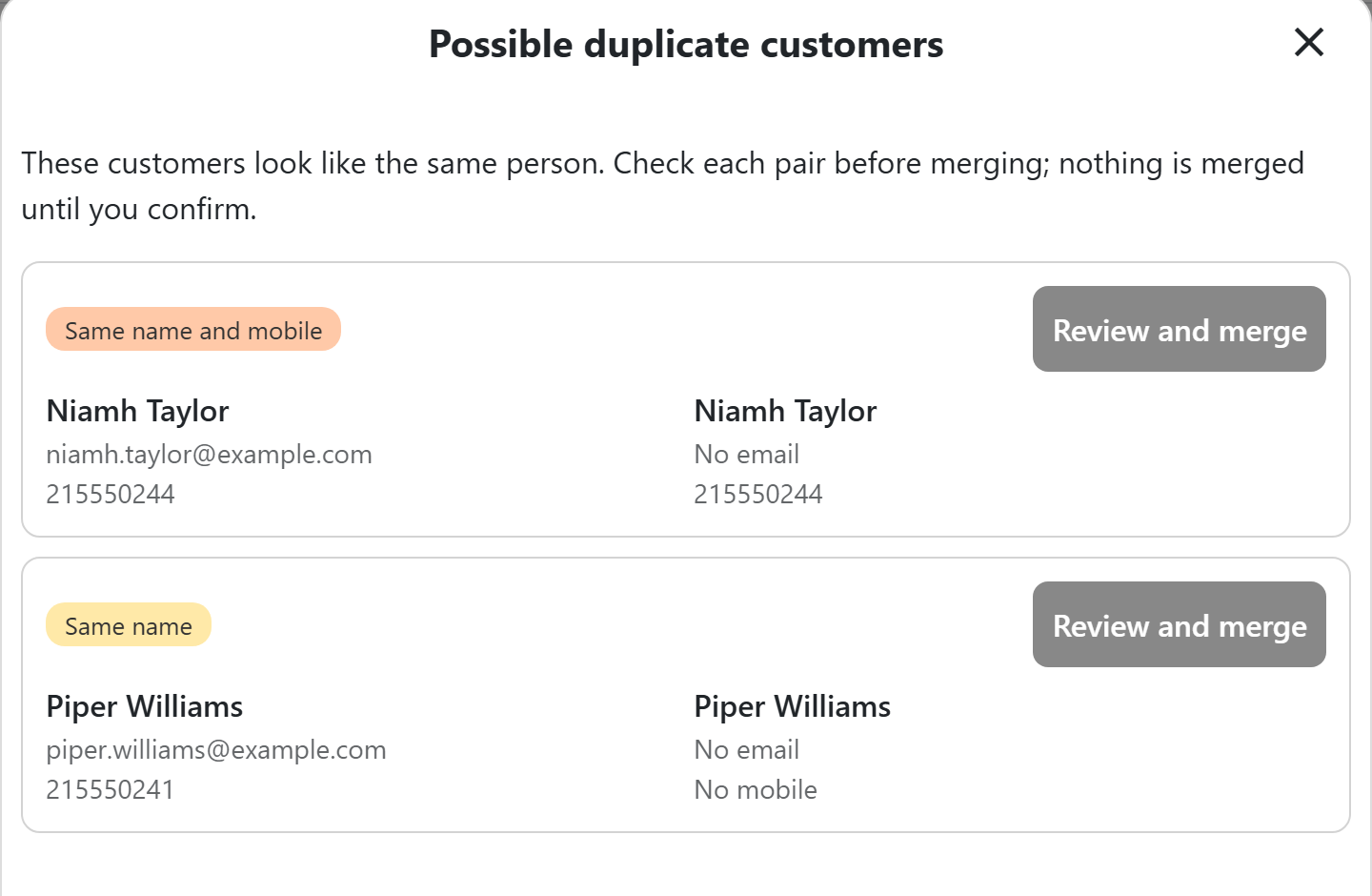
- Each suggestion shows the two customers and why they were matched:
- Same mobile, or Same name and mobile.
- Same name and birthday.
- Same name. These are only suggested when the details don't clash, for example when one record has no email.
- Select Review and merge beside a pair to check it.
Suggestions are only a guide. Two family members can share a mobile number, so always look at the details before you merge. Pairs that aren't duplicates can simply be ignored. The list shows up to 100 pairs, with the likeliest first; merge some and check again to see more.
Merge two customers
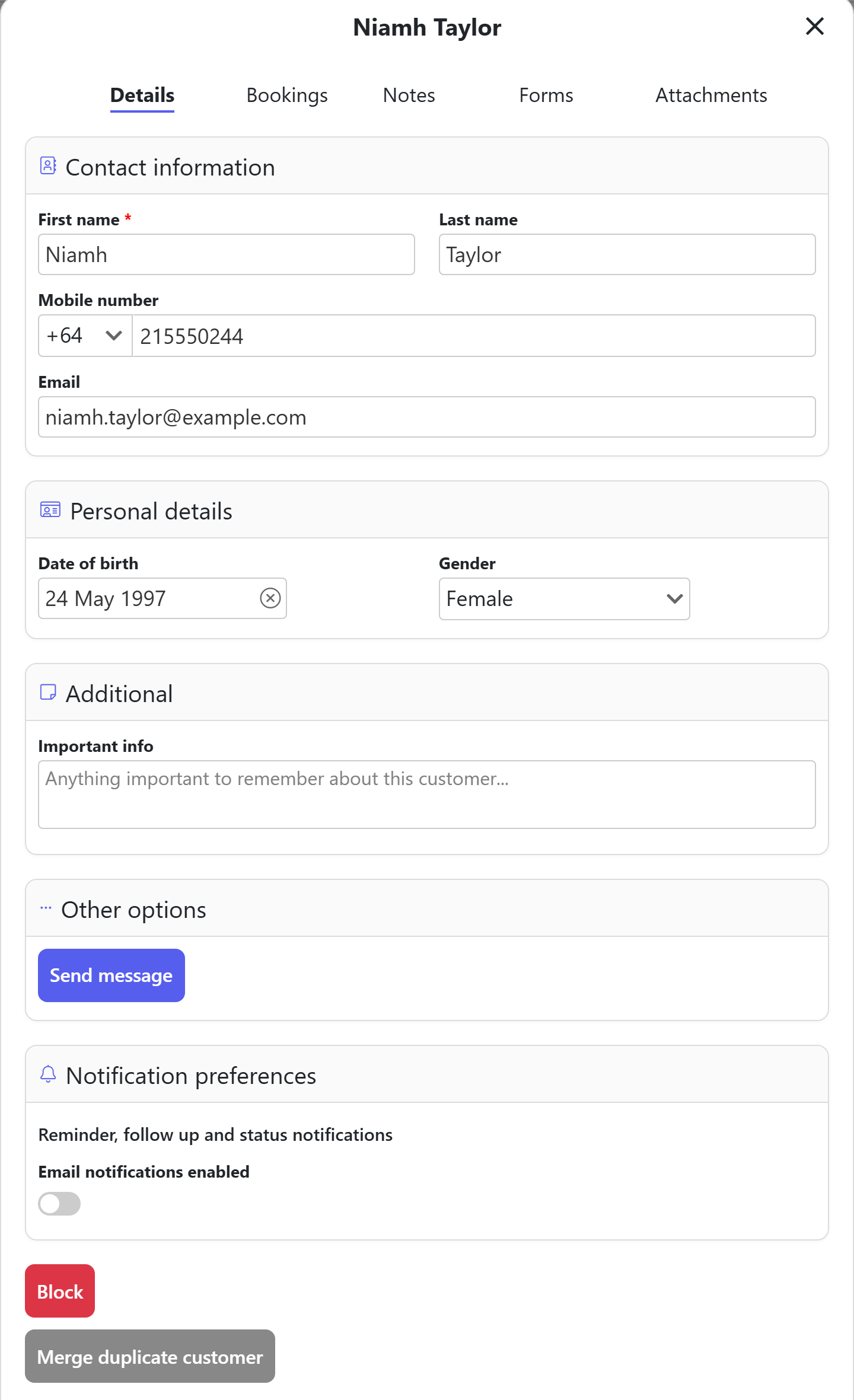
- Open Customers and select the customer you want to keep.
- On the Details tab, scroll to the bottom and select Merge duplicate customer.
- Search for the duplicate by name, mobile or email, then select it.
- Review the summary. It shows both customers side by side and how many bookings, invoices and notes will move across.
- Where the two records have different details, choose which to keep (see below).
- Select Merge customers.
Select Keep [name] instead if you'd rather keep the other record. Select Back to pick a different duplicate, or Cancel to leave without changing anything.
Choosing which details to keep
If both customers have a value for the same detail and the values differ, you're asked to choose one:
- Name
- Mobile
- Birthday
- Gender
- Membership level
- Important info
For Important info you can also choose Keep both, which joins the two together. That option is only offered if the combined text fits within the 2000 character limit.
If only one customer has a value, for example one has an email and the other doesn't, Bookingly fills it in automatically. Nothing is lost.
What carries over automatically
- Blocked: if either customer is blocked, the merged customer is blocked.
- Marketing opt-outs and notification settings: if either customer has turned something off, it stays off. A customer's choice to stop receiving messages is always respected.
- Customer since: the earlier of the two dates is kept.
Tips
- Merge into the record with the most complete details or the longest history, so there's less to choose between.
- An old unsubscribe link from an email sent to the removed customer may no longer work if the kept customer already has their own link.
- Merging works the same for service and sports and facilities businesses.
- See Add and Manage Your Customers for editing one customer at a time, and Import and Export Customers for bulk changes.