
A one-off campaign sends one message to a group of customers you choose, such as people who booked a particular service in the last 30 days. Use it for a special offer, a quiet-period boost or a message to people who haven't been in for a while. To email everyone, use a newsletter instead.
Marketing needs to be turned on for your account, and you need the right permission. If you don't see Marketing in the main menu, contact us through the chat button.
Create a campaign
- Open Marketing and select One-off campaigns.
- Select Add campaign.
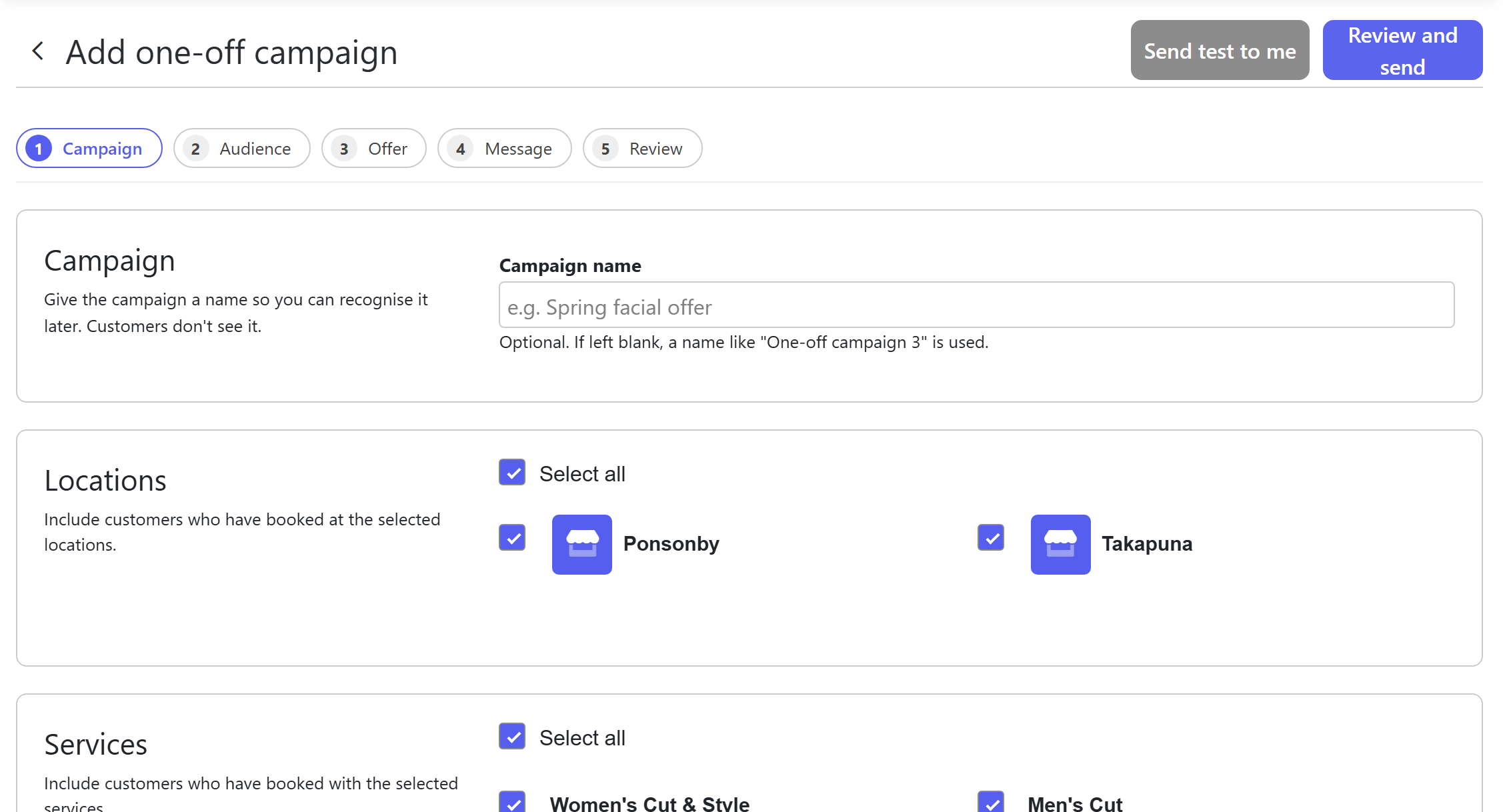
- Work through the sections below, then select Next to review and send.
Name
Give the campaign a Campaign name so you can recognise it later. Customers never see it. If you leave it blank, a name such as "One-off campaign 3" is used.
Choose who receives it
The message goes to customers who match all of your choices:
- Locations: customers who have booked at the locations you select.
- Services: customers who have booked the services you select.
- Staff: customers who have booked with the staff members you select.
- Has booked in the last: only customers who booked within this many days. Leave it blank for no limit.
- Does not have future bookings: switch on to skip anyone who already has an upcoming booking.
Use Select all to choose every location, service or staff member. You must pick at least one of each. Sports and facilities businesses choose locations and the courts or spaces instead of services and staff.
Add a deal (optional)
Switch on Deal enabled to include a discount code, then fill in:
Field | What it does |
|---|---|
Name | A name for the deal, shown in your Deals list. |
Discount code | The code customers use. |
End date | When the code stops working. Leave blank so it doesn't expire. |
Discount type and Discount value | A percentage off, or a fixed amount off. |
One use per customer | Each customer can only use the code once. |
Minimum purchase amount | Only applies when the spend reaches this amount. |
Put the {{DiscountCode}} placeholder in your message so each customer sees the code. If your deal has an end date, mention it in the text.
Customers can type the code on your online booking page only when full payment is taken at booking and the Discount code option is on in More > Setup > Online bookings. Otherwise they can show the code to your staff, who apply it at checkout. See Create and Manage Deals.
Write the message
Choose how to deliver it: Email, and SMS if text messaging is turned on for your account. At least one must be on. For email, enter an Email subject and Email message. For SMS, enter the SMS message. Placeholders such as the customer's name and {{BusinessName}} can be inserted from the list.
Review and send
Select Next. A Summary shows how many emails (and text messages) will be sent. Check it and the message, then select Start campaign.
The campaign starts immediately. After it has started you can't change it, so check the details first.
Customers who have switched off marketing are skipped automatically.
See how it went
Open Marketing > One-off campaigns and select a campaign to see:
- The campaign's settings, including who it was aimed at.
- Sent messages, with how many were delivered, Opened and failed.
- The deal, if one was included, and how many people used it.
The open rate is based on delivered emails. Some email apps hide opens, so the real figure is usually higher.
To see every message sent to one customer, open Messages and search for them.
See the bookings it brought in
If your message includes the {{BookNowUrl}} placeholder, that link is tagged for you. Open More > Insights > Booking page and look for campaign under Where visits come from to see the visits and bookings that came from your one-off campaigns. Opens and clicks on a message only show interest, while this shows who went on to book.
The tag is the same for every one-off campaign, so it adds them together. If you want one campaign counted on its own, don't use the placeholder in it. Instead make your own link under Make a tagged link on the Insights page, named after the campaign, and paste it into your message. Messages sent before Insights was released aren't tagged. See See How Your Booking Page Is Performing.