
Insights shows you what happens on your online booking page before a booking is made. You can see how many people visit, how far they get, and which links and promotions bring in bookings.
Open Insights
Open More > Insights > Booking page. You need permission to manage business details.
Choose 7 days, 30 days or 90 days to change the period. The period includes today, and days start and end at midnight in your business's time zone (taken from your first location). If your locations are in different time zones, a Time zone list appears so you can choose which one the days are measured in. It works the same way for service and for sports and facilities businesses.
Your booking page address is shown at the top with a Copy link button. If your online booking page is switched off, a notice tells you so, with a link to the setup page, because customers can't visit it and nothing new is counted.
Visits are counted from the day Insights was released. Earlier visits can't be added, so the page shows "Nothing to show yet" until the first customer visits your booking page.
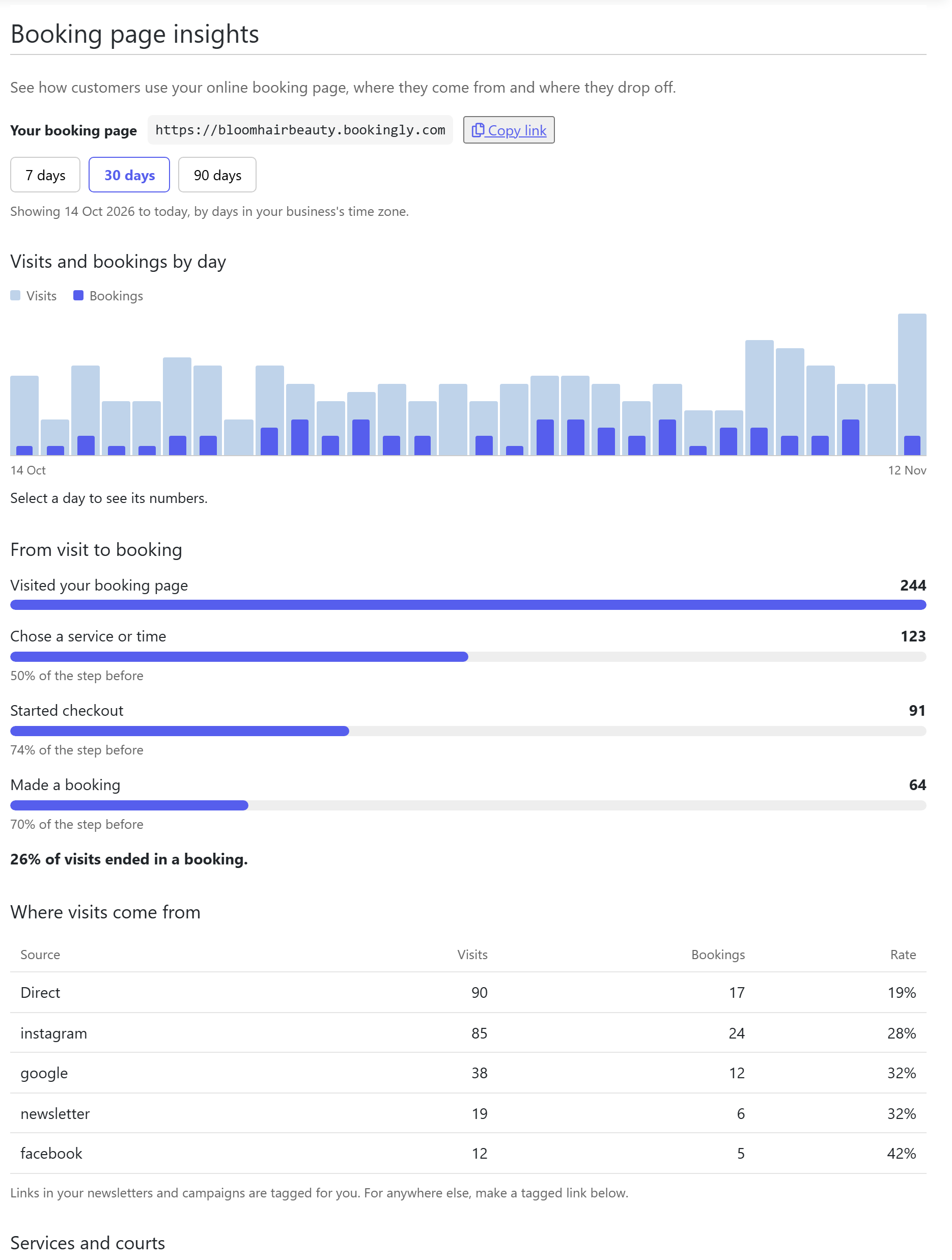
Visits and bookings by day
The chart at the top shows a column for each day. The light bar is the number of visits and the dark bar in front is the number of bookings. Hold your pointer over (or tap) a day to see the exact numbers. Use it to spot quiet days, or a spike after you send a newsletter or post a link.
Select a day (or move to it with the keyboard and press Enter) to see its numbers under the chart. This also works on a phone.
A day's bookings are counted on the day the customer finished booking, which can be a different day to their visit.
From visit to booking
This shows how many visits reached each step:
- Visited your booking page
- Chose a service or time - for a sports and facilities business this reads "Chose a court or time" (using your own word for a court)
- Reached the details step - got to the page where the customer enters their details
- Made a booking
If your page has had fewer than 20 visits in the period, a yellow note reminds you that percentages can swing a lot with so few. Treat them as a rough guide until there are more.
Under each step you can see what share of the step before carried on. A big drop between two steps shows where customers are giving up. For example, many people choosing a service but few starting checkout can mean there are no times that suit them, or that the price put them off.
A customer who goes back and forth between steps is counted once for each step. Customers who pay online are still counted as booked when they return from the payment page.
Where visits come from
This lists where your visitors came from, with the number of visits, the bookings that followed, and the share of visits that ended in a booking. A booking is credited to the source of the visit it came from.
A source is one of:
- the name you tagged the link with (see below)
- the website that linked to your booking page, such as
instagram.com - Direct, when the customer typed your address, used a bookmark, or came from a link that doesn't pass on where it came from, such as many email apps
Tag your links
Links in your marketing messages are tagged for you. The Book now link (the {{BookNowButton}} placeholder) in a newsletter shows as newsletter, in a one-off campaign as campaign, and in an automated campaign as automated. You don't need to do anything. Messages sent before Insights was released aren't tagged.
For everywhere else, make a tagged link at the bottom of the Insights page:
- Under Make a tagged link, type where you'll share it, such as
Instagram, or choose one of the suggestions. - Select Copy link.
- Use that link in your Instagram bio, on your flyer's QR code, in your email signature, or wherever you're sharing it.
Use a different link for each place so you can tell them apart. Bookings from the link are then listed by that name under Where visits come from.
You can also tag a link yourself by adding ?utm_source= and a name to your booking page address, such as https://your-business.example/?utm_source=flyer. Only the source is shown on the page for now.
Services (or courts)
This lists what customers chose and how many of those visits ended in a booking, for the most popular items. Services businesses see their services, and sports and facilities businesses see their courts, headed with your own word for them. Use it to spot one that people look at but rarely book.
Discount codes and deals
This shows each deal that was used in the period, its code, how many times it was used and the total amount it took off. To create or manage deals, see Create and Manage Deals.
What is and isn't counted
- Only the online booking page is counted. Bookings your team add in Bookingly aren't included.
- When you preview your booking page in Setup > Online bookings, nothing is counted.
- Bookingly doesn't use cookies for this and doesn't record names, email addresses or IP addresses. Each visit is a random number that is forgotten when the customer closes the tab.
- Customers who open your booking page in a second tab count as a second visit.
- Search engines, link previews, monitoring tools and other automated visitors are ignored.
Using Google Analytics or a Meta Pixel as well
If you also want to see visits and bookings in Google Analytics, or measure Facebook and Instagram ads, you can add your own tracking IDs to your booking page. See Add Google Analytics, Tag Manager or a Meta Pixel to Your Booking Page.