
Customers can say no to marketing at any time, and your campaigns respect it. This article explains how opt-outs work and how to check or change a customer's preferences.
What customers can do
Every marketing email, including newsletters, one-off campaigns and automated campaigns, ends with a footer saying who it came from, with an Unsubscribe link.
When a customer selects it, they see a page asking them to confirm: "Stop sending you marketing emails?" and a note that they'll still get messages about their bookings. After confirming they see that your business won't send marketing emails any more.
The page also lets them Subscribe again if they change their mind.
What stops and what doesn't
Stops | Continues |
|---|---|
Newsletters | Booking confirmations |
One-off campaigns | Reminders |
Automated campaigns (welcome, birthday, win-back, review requests) | Booking changes and cancellations |
Booking messages are controlled separately, with Email notifications enabled on the customer. See Customer Notifications and Reminders.
You'll see it before you send
When you review a newsletter, Bookingly shows how many customers will receive it and how many are Opted out. Opted-out customers are never emailed. Campaigns skip them automatically. See Send a Newsletter.
Check or change a customer's preferences
- Open Customers and select the customer.
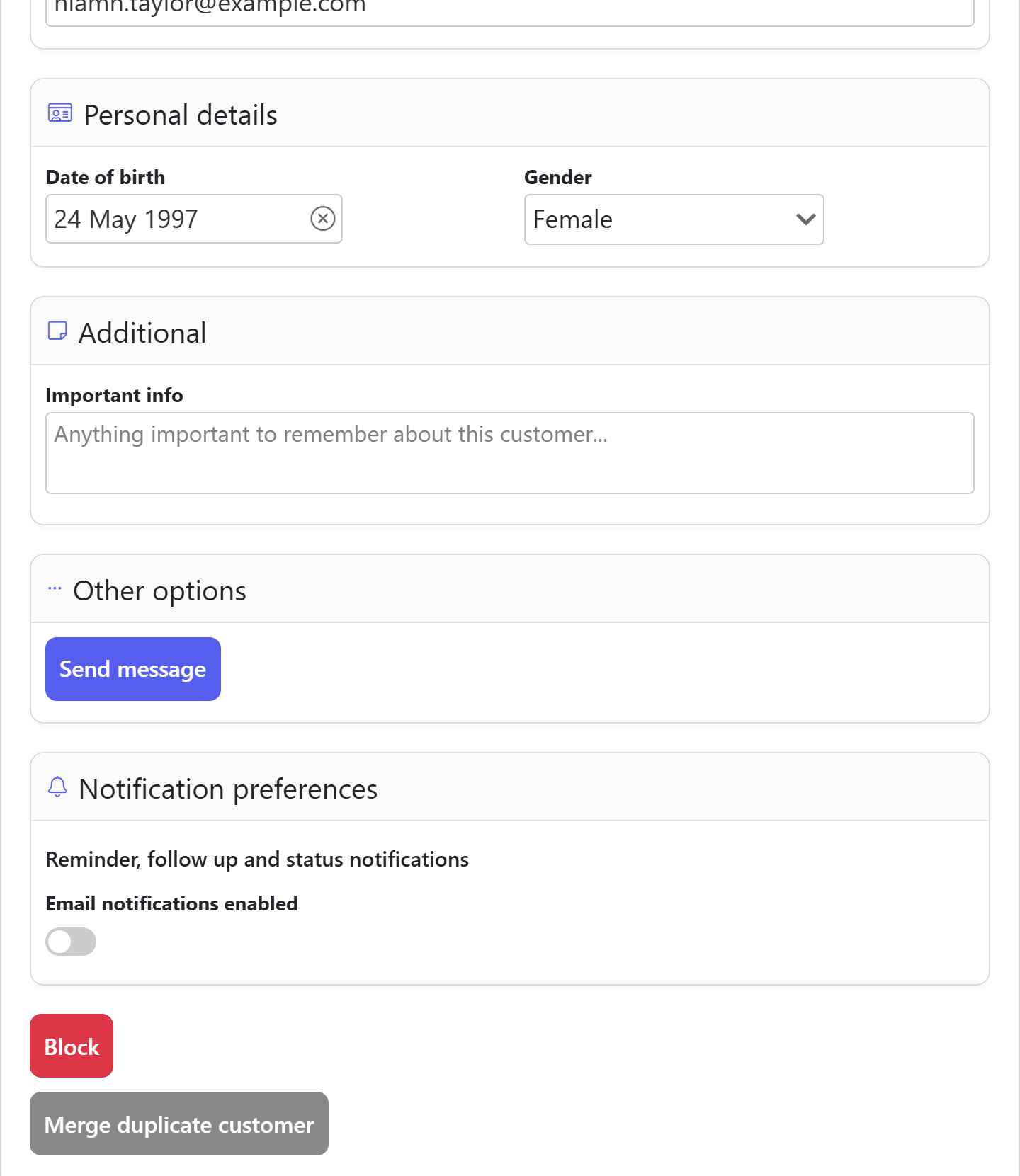
- On the Details tab, find Notification preferences.
- Check Email marketing enabled and SMS marketing enabled (SMS only appears if text messaging is on for your account).
- Select Save if you make a change.
If a customer asks you to stop marketing, switch these off. If an unsubscribed customer asks to hear from you again, they can use Subscribe again, or you can switch email marketing back on if they've asked you to. Only do so if the customer has asked.
See Add and Manage Your Customers.
Text message marketing
If text messaging is on for your account, every marketing text ends with an Opt out link that works the same way, for texts only. If a customer tells you another way that they don't want texts, open their profile and switch off SMS marketing enabled. Replying "STOP" to a text isn't picked up automatically, so please act on any such request that reaches you.
Good practice
- Only market to people who expect it. Customers who have booked with you are reasonable recipients, but don't import lists of people who never dealt with you.
- Keep emails relevant. A short, useful message gets fewer unsubscribes.
- Never re-add someone who opted out. Importing a customer list doesn't change a customer's opt-out. Check the opted-out count in the review screen.
- Know your local rules. Anti-spam and privacy laws differ by country. They generally require a clear sender and a working way to unsubscribe, which Bookingly adds to every marketing email.
- Spam complaints. If a customer marks your email as spam, it shows in Messages as "User marked as spam", and they're not sent more marketing. See View and Send Messages to Customers.