
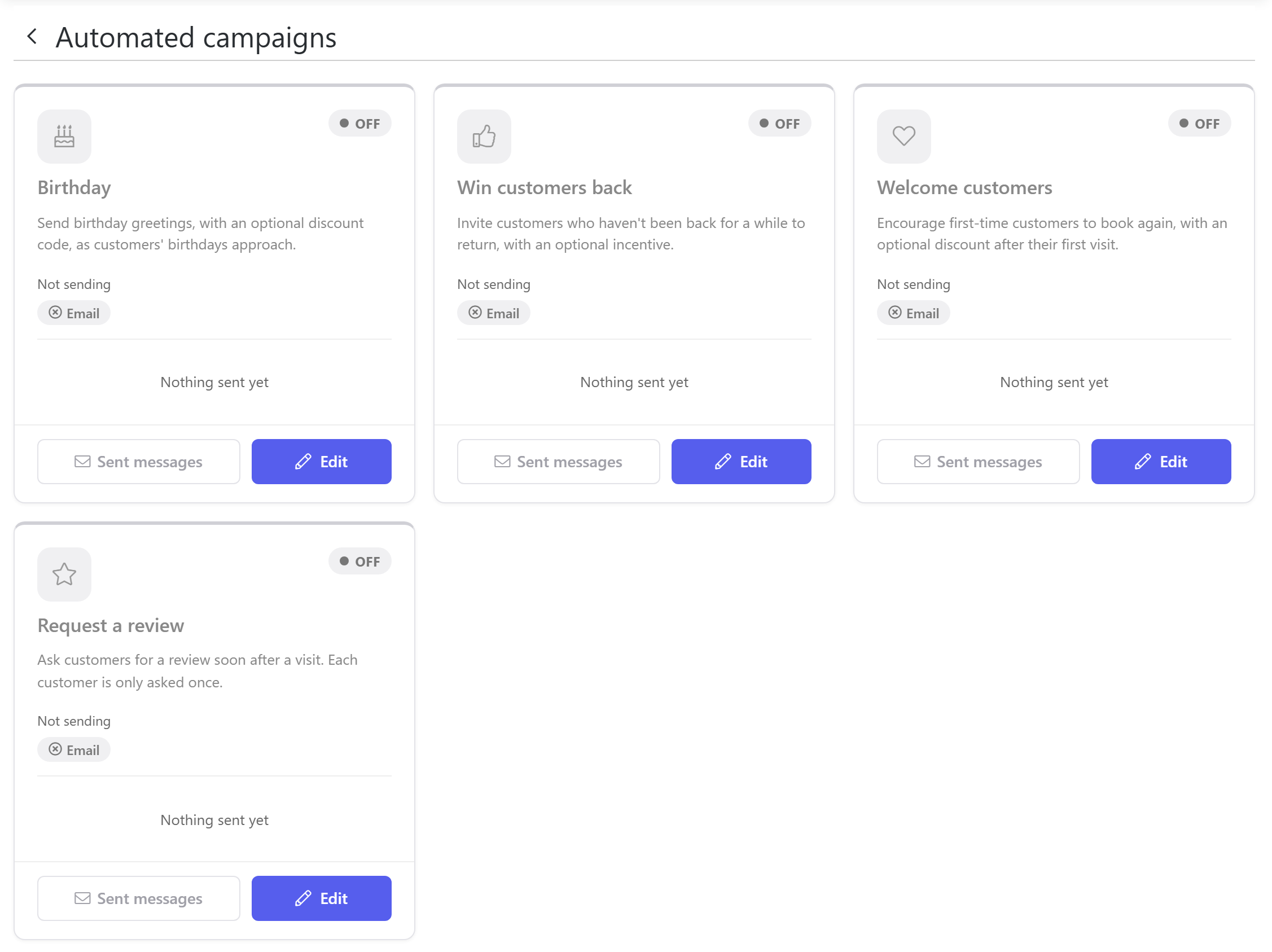
Automated campaigns send themselves. Switch one on once, and Bookingly sends the message to each customer at the right moment. There are four kinds:
Campaign | What it does |
|---|---|
Welcome | Thanks a new customer after their first booking, and encourages them to book again. You choose how long after the booking it is sent. It is sent once per customer. |
Birthday | Sends a greeting, and optionally a discount code, on or before the customer's birthday. You choose how many days before. Customers need a date of birth on their profile. |
Win customers back | Reaches customers who haven't booked for a while, with a special incentive. Sent once per customer, after the period you choose since their last booking. |
Review request | Asks the customer for a review soon after a visit. See below. |
Marketing needs to be turned on for your account, and you need the right permission. If you don't see Marketing in the main menu, contact us through the chat button.
Set one up
- Open Marketing and select Automated campaigns.
- Select the campaign you want.
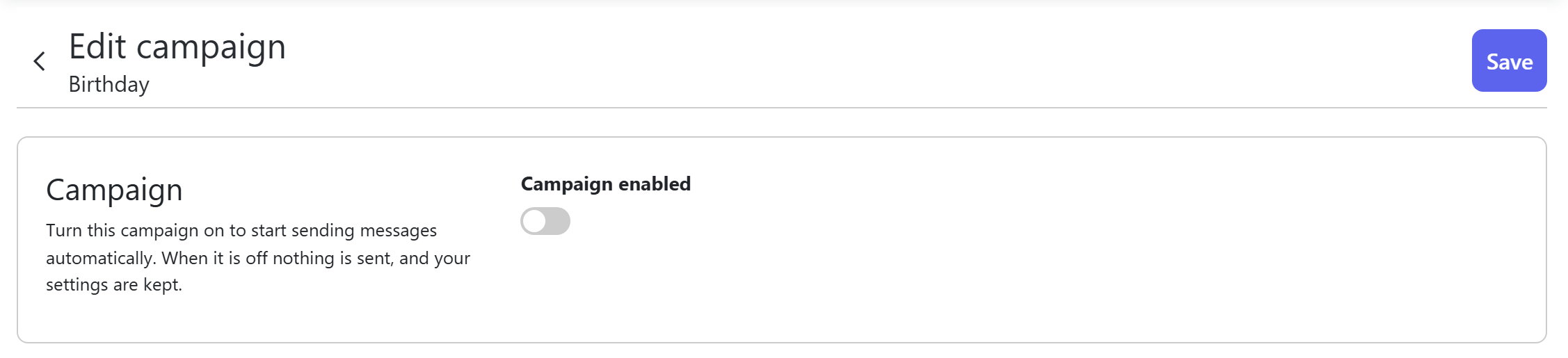
- Switch on Campaign enabled. While it is off nothing is sent, and your settings are kept.
- Under Options, choose when the message is sent.
- Choose whether to send by Email, and SMS if text messaging is on for your account, and write the message. The preview shows how it will look.
- Optionally switch on Deal enabled to include a discount code (see below).
- Select Save.
The first time you turn on a win-back campaign, some existing customers may already match, so check the message and settings carefully before saving.
Include a discount
Switch on Deal enabled to offer a code in the message:
- Discount code, Discount type and Discount value (a percentage or fixed amount).
- Expires after: how long the code stays valid after the message is sent, or Does not expire.
- Minimum purchase amount: switch on to require a minimum spend.
Add the discount code placeholder to your message so customers see it, and mention the expiry in the text if you set one. Codes can be entered on your online booking page when full payment is taken at booking and the Discount code option is on under More > Setup > Online bookings. Otherwise customers show the code to staff to apply at checkout. See Create and Manage Deals.
Ask for reviews
The review request campaign helps build your online reputation.
- Ask for a review after the customer's: choose which booking triggers it (the 1st booking by default).
- Send message: as the visit ends, or a number of days after.
- Review link: paste the web address of your review page, for example your Google review link. It must start with
https://. - Include the review link placeholder in your message so customers can find the page.
Each customer is asked only once, and never for a cancelled or did-not-show booking.
See what was sent
Open the campaign and select Messages to see each message sent, who received it and whether it was opened. The open rate is based on delivered emails. Some email apps hide opens, so the real figure is usually higher.
See the bookings it brought in
If your message includes the {{BookNowUrl}} placeholder, that link is tagged for you. Open More > Insights > Booking page and look for automated under Where visits come from to see the visits and bookings from your automated campaigns, such as welcome and win-back messages.
The tag is the same for every automated campaign, so it adds them together. Messages sent before Insights was released aren't tagged. See See How Your Booking Page Is Performing.
Respecting customers' choices
Customers who have turned off marketing, or who unsubscribe from an email, are skipped automatically. See Marketing Overview.