
The calendar is where you and your team spend most of the day. This article covers the everyday moves that save time. For how to read a single booking, see Find Bookings in Your Calendar.
This article is for businesses that sell services. Sports and facilities businesses see a timetable of courts instead. See Manage Court Bookings on the Timetable.
Pick the view
Switch between three views:
View | Best for |
|---|---|
Day | Busy days. See each hour in detail, and each staff member's bookings. |
Week | Planning ahead. See the whole week at once. |
Month | A whole-month overview. Each day lists its bookings, so you can see which days are full and which are quiet. |
Use the date picker to jump to any date. The button beside it takes you back to today, this week or this month, depending on the view. A line on the day and week views marks the current time.
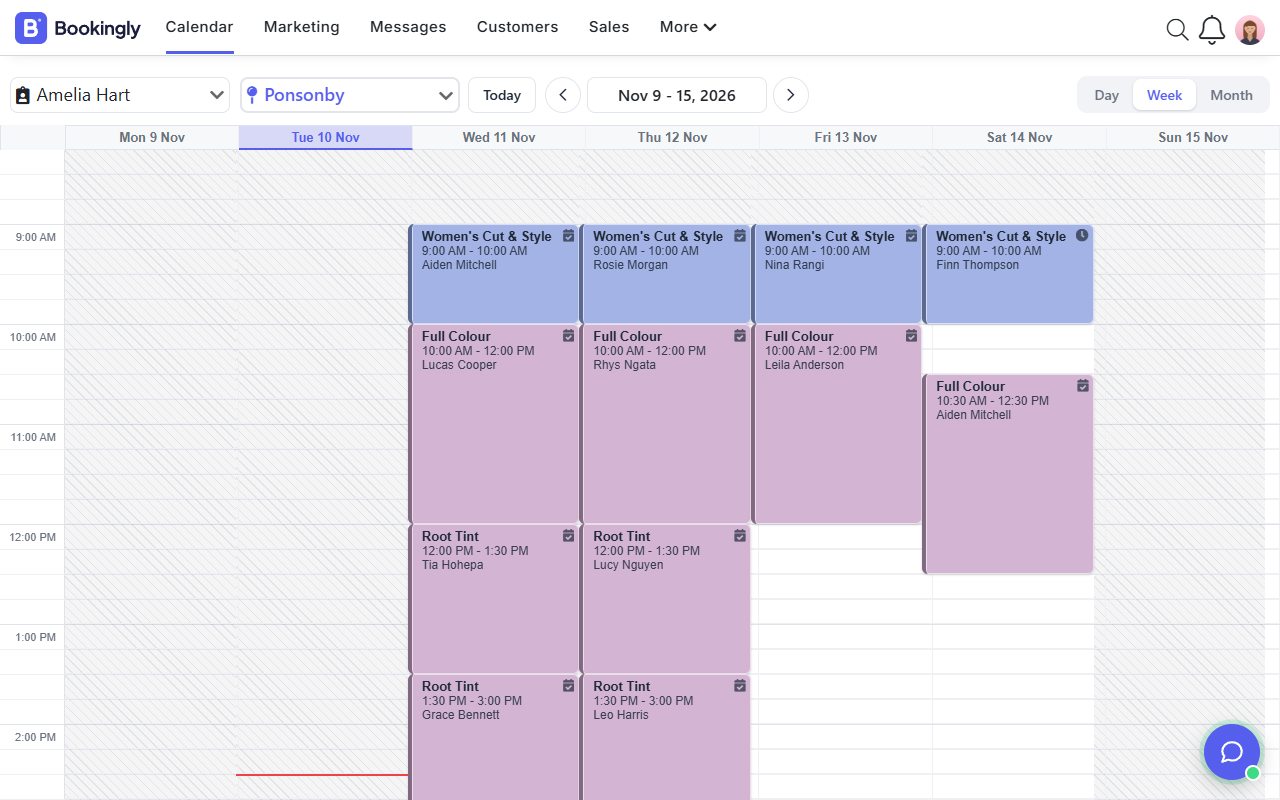
The month view lists each day's bookings, so you can see at a glance how busy the month is.
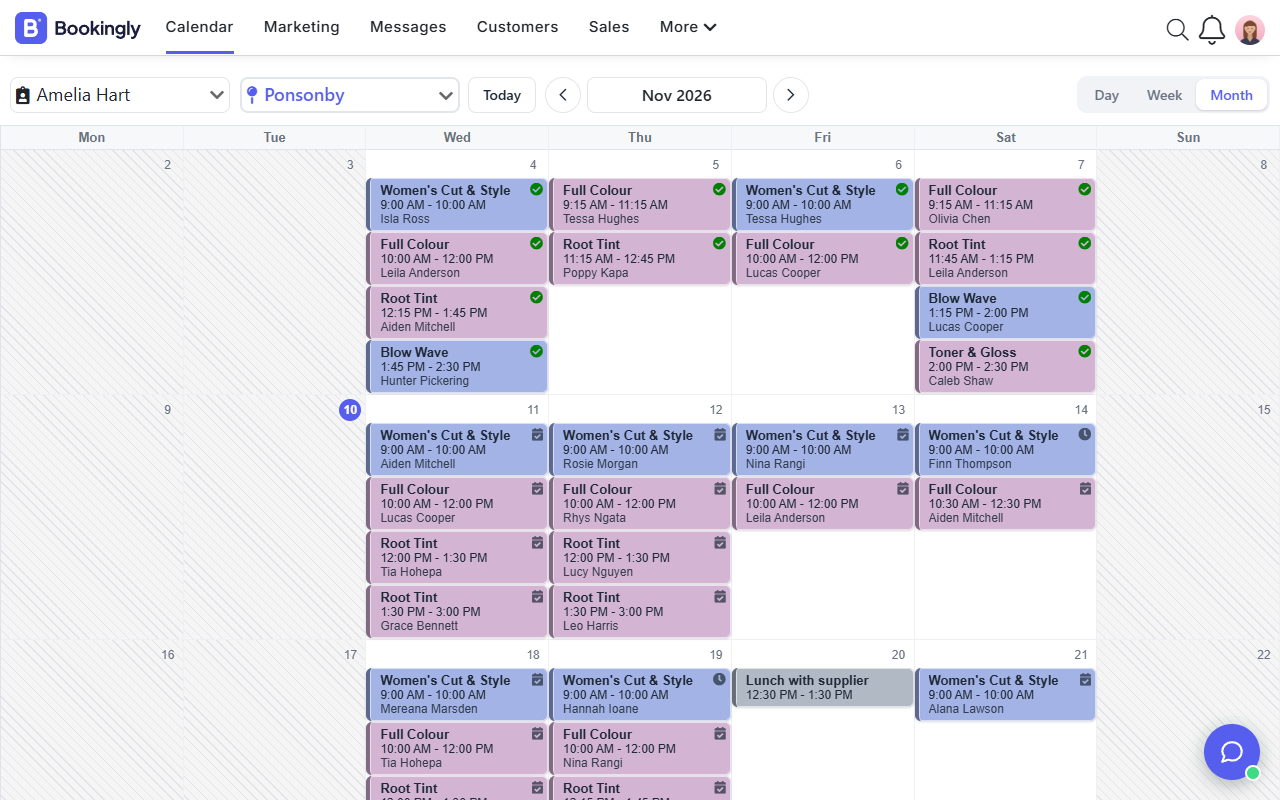
On a phone, the week view can show a lot. Tap a day to widen it, and tap it again to shrink it.
Add a booking from the calendar
Select an empty time to open a small menu with two choices: Add booking and Block time. The booking form opens with the date and time already filled in. See Add or Edit a Booking.
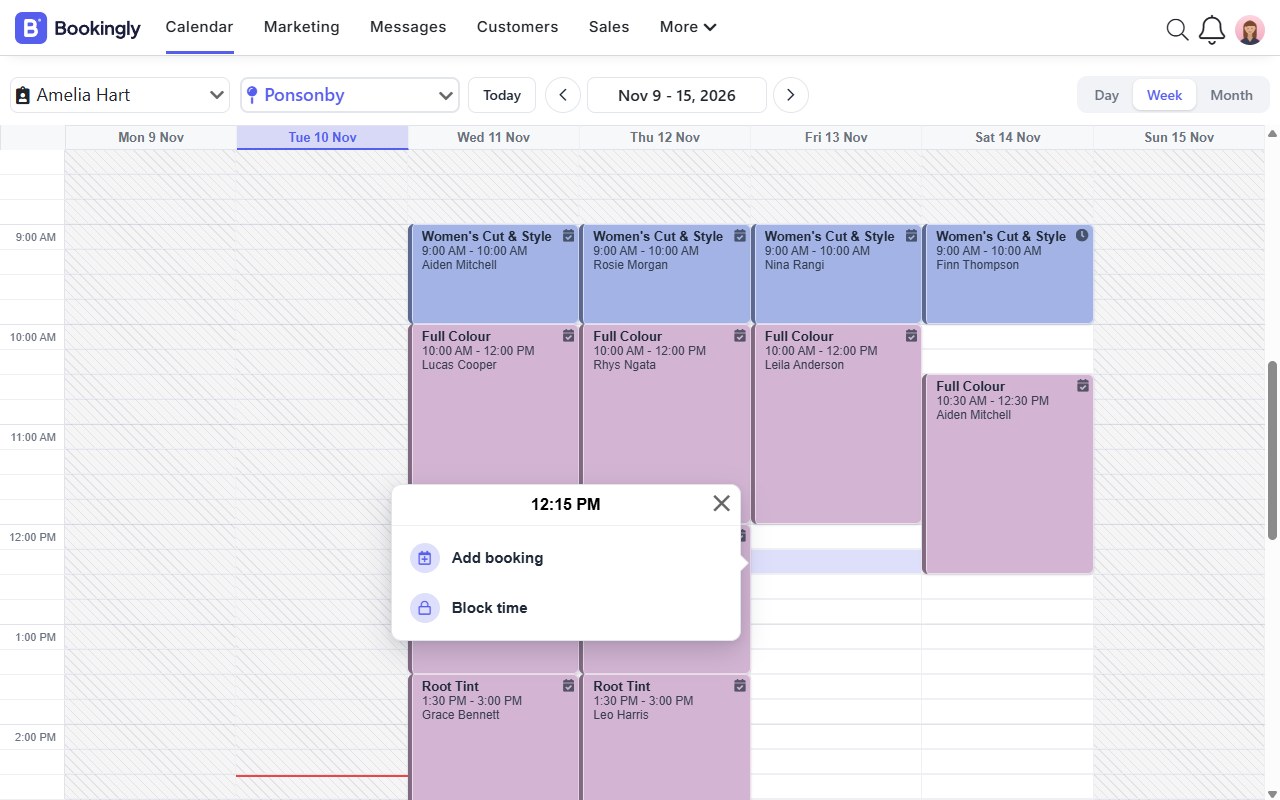
You can also use the add button at the top of the calendar. Choosing the date from its date picker saves changing the form afterwards.
Adding bookings and blocking time depend on your permission role. If you don't have permission you'll see a message saying so.
Block time
Choose Block time from the same menu to stop bookings during a lunch break, a training session or anything else. See Block Time in Your Calendar.
Move a booking
Drag a booking to a new time or day and drop it. You're asked to confirm, and told how the customer will be notified. On a touch screen, press and hold the booking, then drag. See Move a Booking to a New Time.
Colours and what each entry means
Bookings take the colour of their service, so you can see at a glance what's coming up. Other entries look different:
- Bookings show the customer and time, with a status icon. See Booking Statuses and "Did Not Show".
- Blocked time shows time you've blocked.
- Time off shows approved leave for staff. Select it to see the staff member and the leave details. See Book Time Off for Staff.
- Busy time from a connected calendar shows when someone is busy in Google Calendar or Outlook, which stops those times being booked. See Sync Your Calendar with Google Calendar or Outlook.
Hover over a booking (on a computer) to see its name, time and description.
Choose whose calendar you see
If you have more than one location or staff member, use the filters to choose the location and staff. Staff only appear under the locations they work at. Filters make it easy to see your own day, or one colleague's.
Changing how the calendar looks
Two calendar settings are in More > Setup > Business details: the calendar interval (how time is divided into rows) and the week start day. See Business Details, Logo and Browser Icon.
Tips
- Use Week in the morning to plan, and Day during the day to work.
- Keep an eye on the status icons so completed and did-not-show bookings are marked.
- If a time you expect to be free is blocked, look for blocked time, time off or a busy event from a connected calendar.
- Refresh by pulling down on a phone, if your calendar looks out of date.